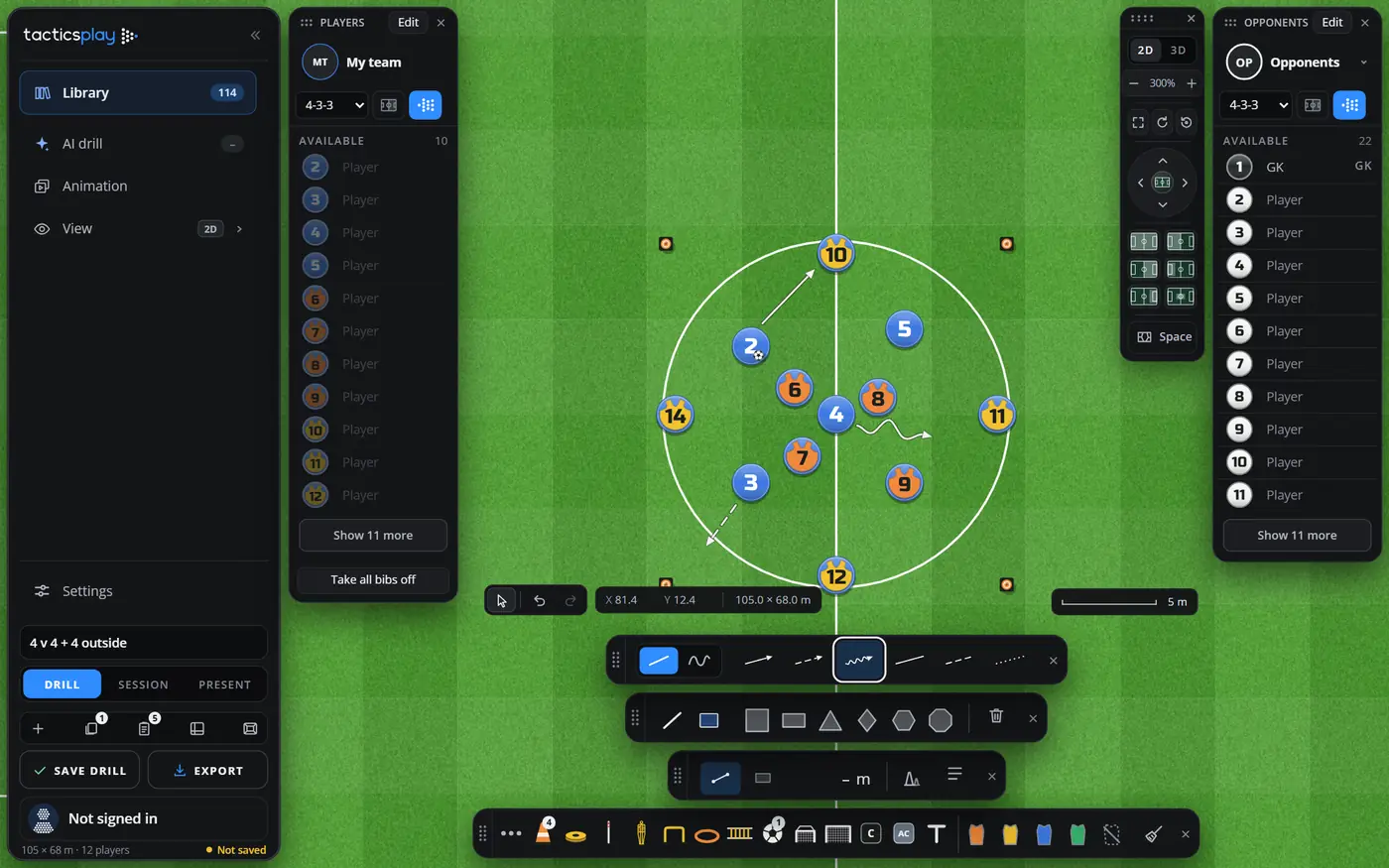
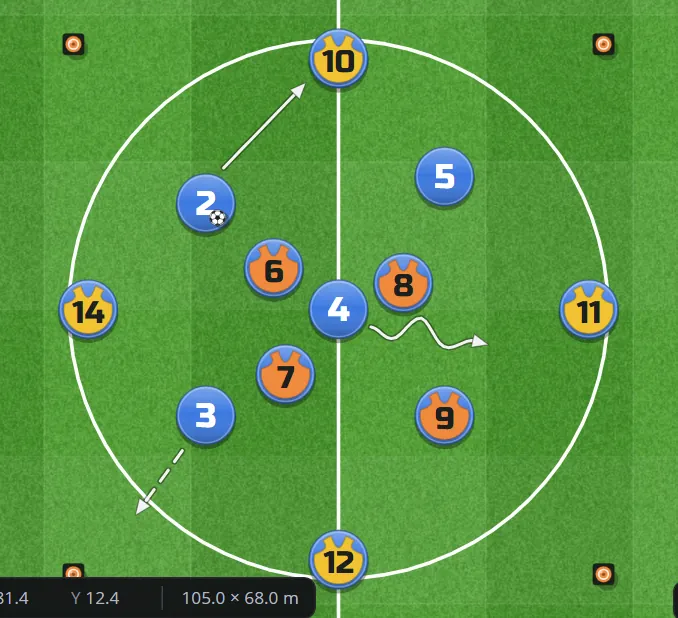
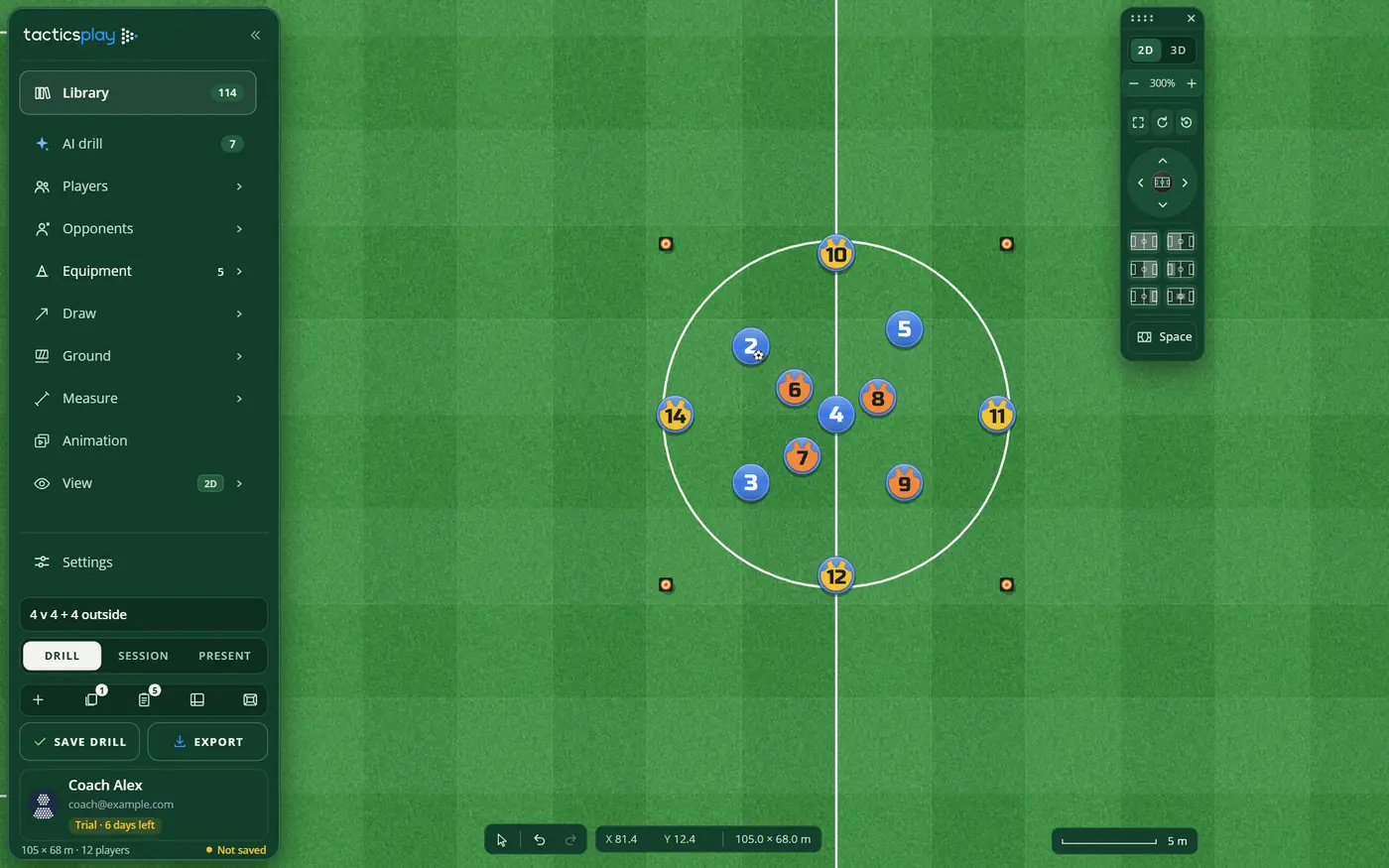
TacticsPlay is a football drill designer and tactics board that runs in your browser. You build drills on a pitch drawn to real size, with your own players, the equipment you really use, lines for passes and runs, painted areas and measurements. You can animate the drill in steps, make it with AI, put several drills into a session, print it, present it on a big screen or export it as a picture, a video or a PDF.
There is nothing to install. Open the app in Chrome, Edge or Safari on a computer or a tablet.
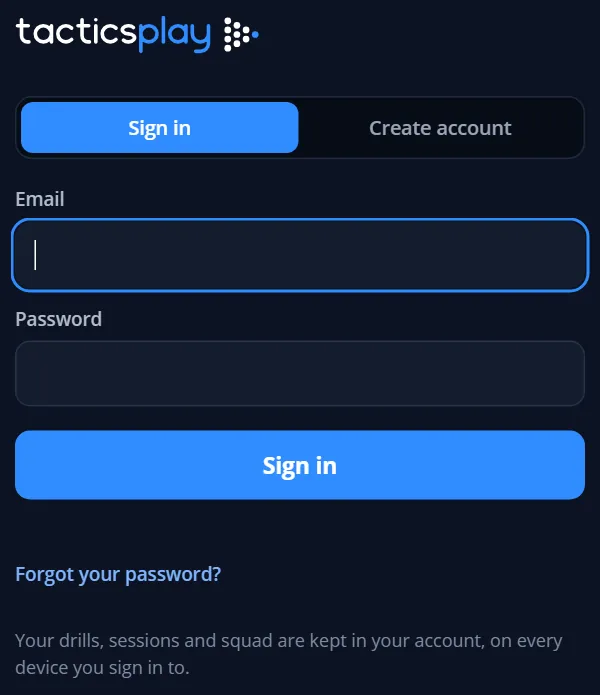
New here? Press Create account, type your email and a password of 8 letters or more, and press Create account.
We send you an email. Press the link in it, then come back and sign in.
Already have an account? Stay on Sign in, type your email and password and press Sign in.
Forgot your password? Type your email, press Forgot your password? and follow the link we email you. The link lets you choose a new password of 8 letters or more.
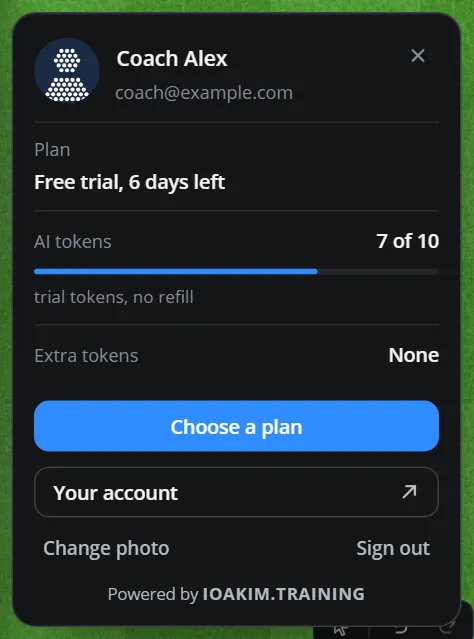
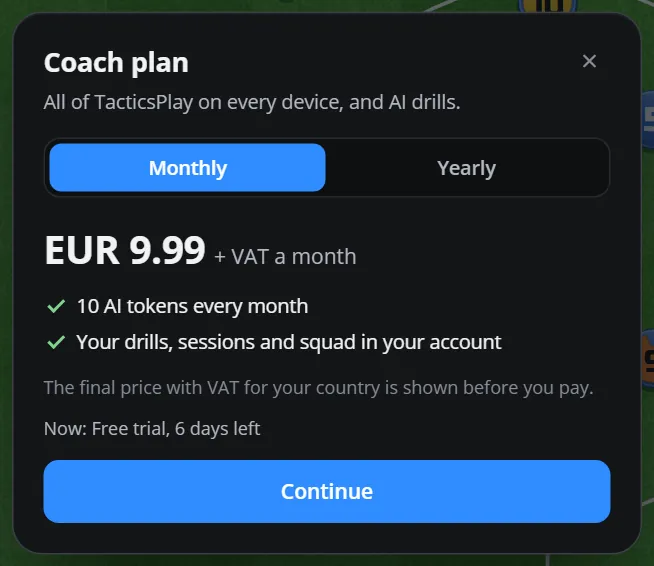
A new account starts the 7-day free trial: the whole app and 10 AI tokens, no card needed. See Plans and pricing.
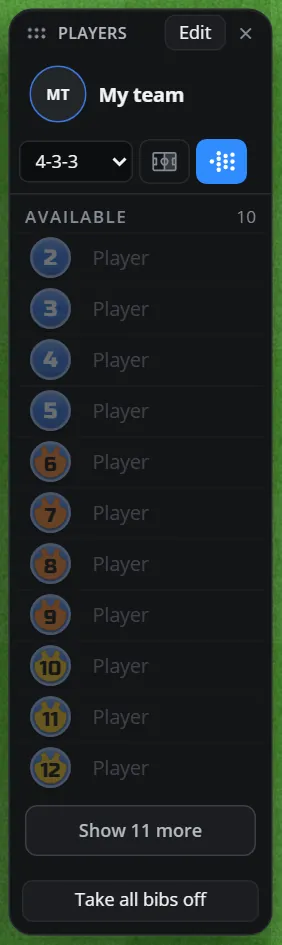
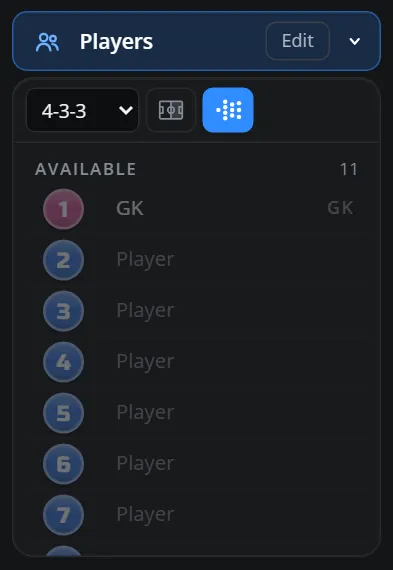
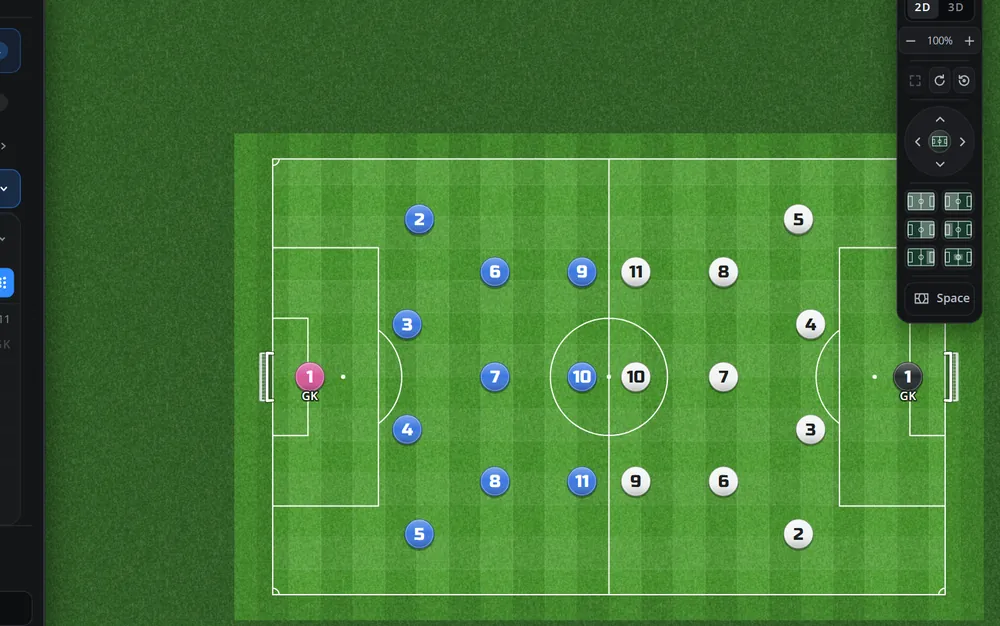
Put your players on: open Players, pick a formation and press the blue button, or drag single players from the list onto the pitch. See Placing players.
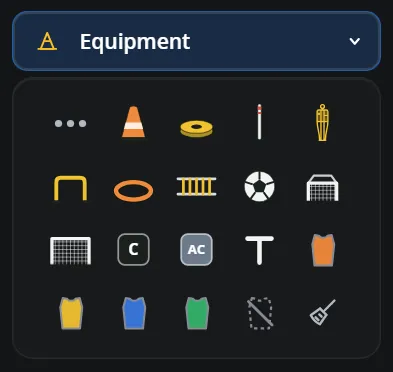
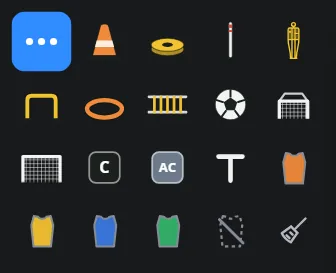
Add the equipment: press a cone, a pole or a goal in Equipment, then press the pitch where it goes.
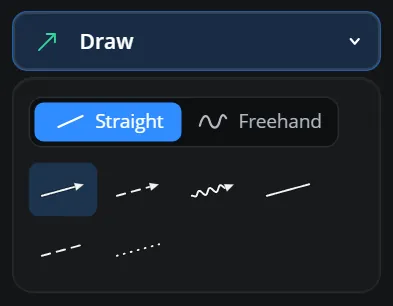
Draw the actions: pick an arrow in Draw and drag on the grass from where the action starts to where it ends.
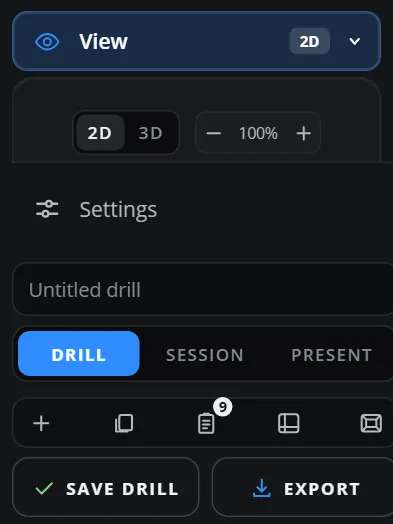
Give it a name in the box above Drill / Session / Present at the foot of the sidebar.
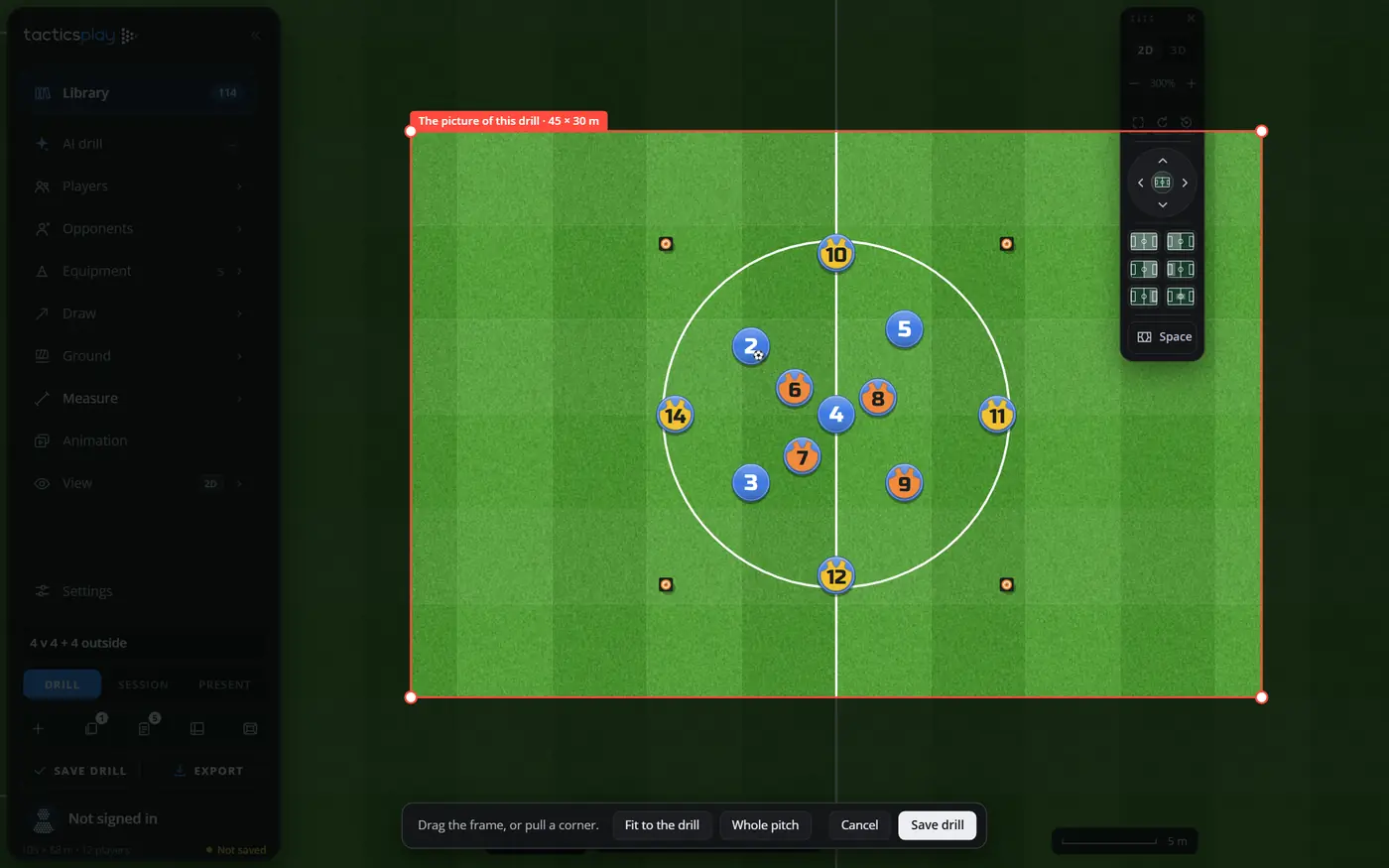
Press Save drill. The drill is kept on your clipboard with a picture, ready for a session.
Tip Short of time? Start from one of the 114 drills of the Library, or describe the drill to the AI.
The screen
The sidebar, the cards you can move, views and the status strip.
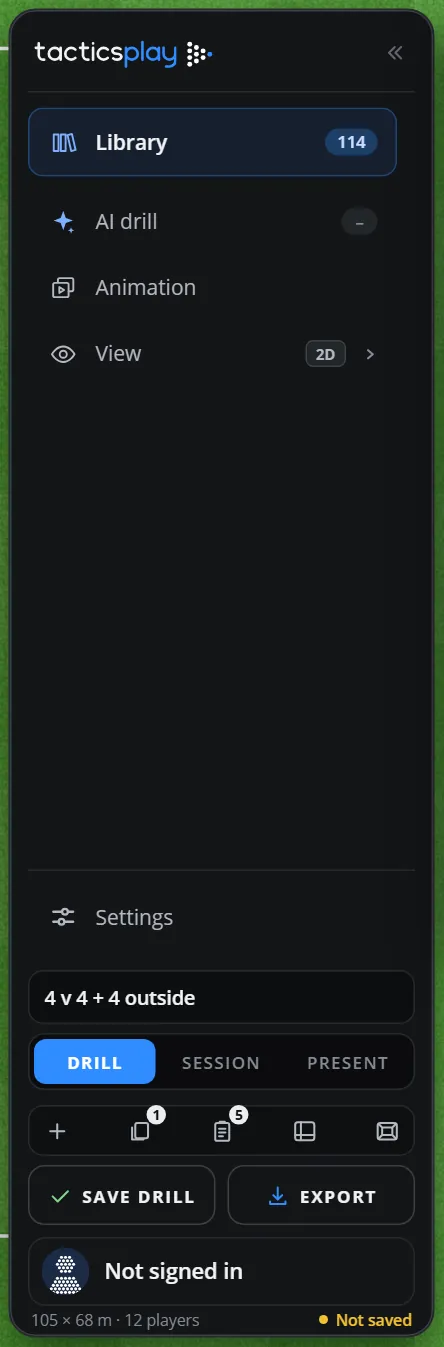
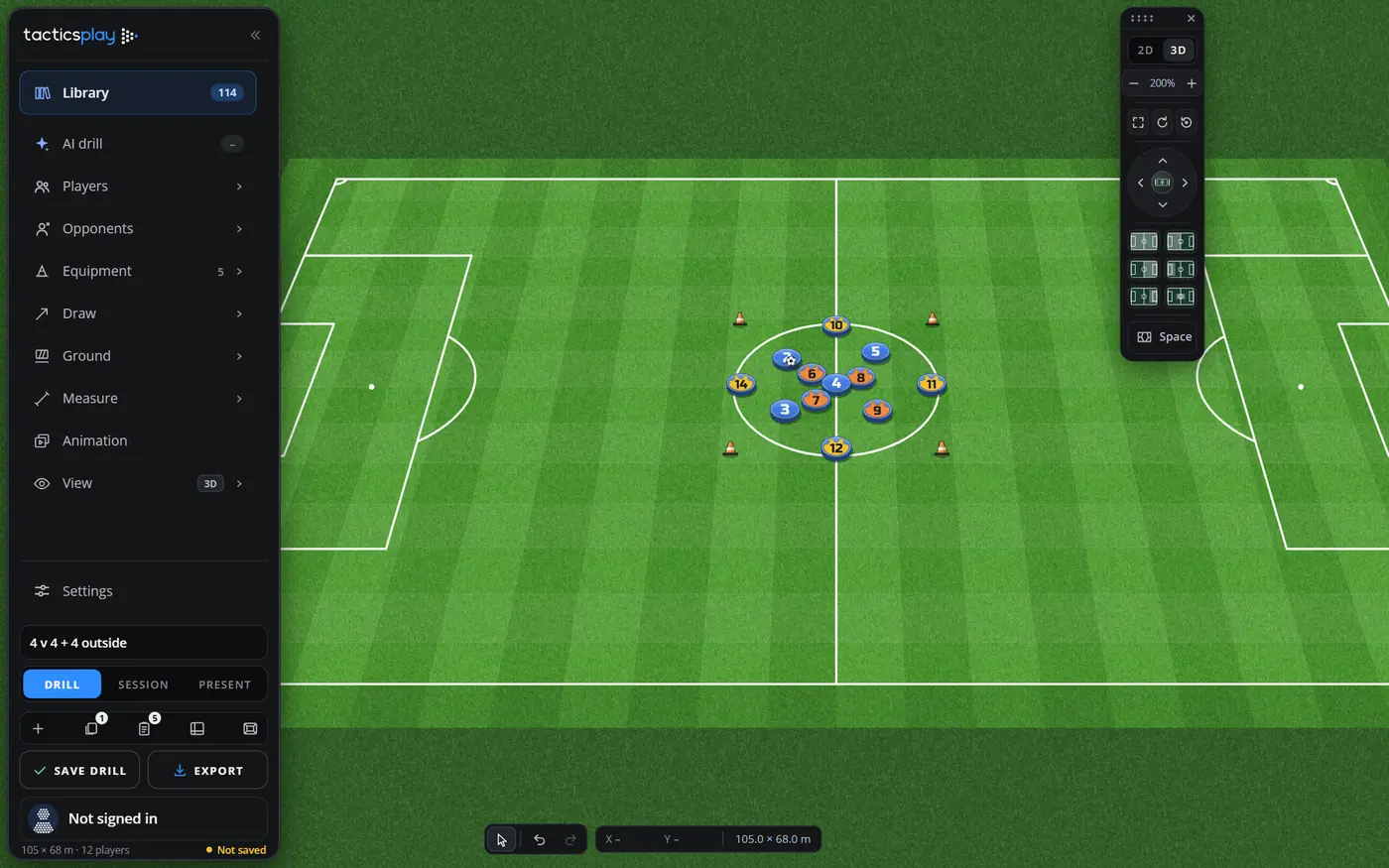
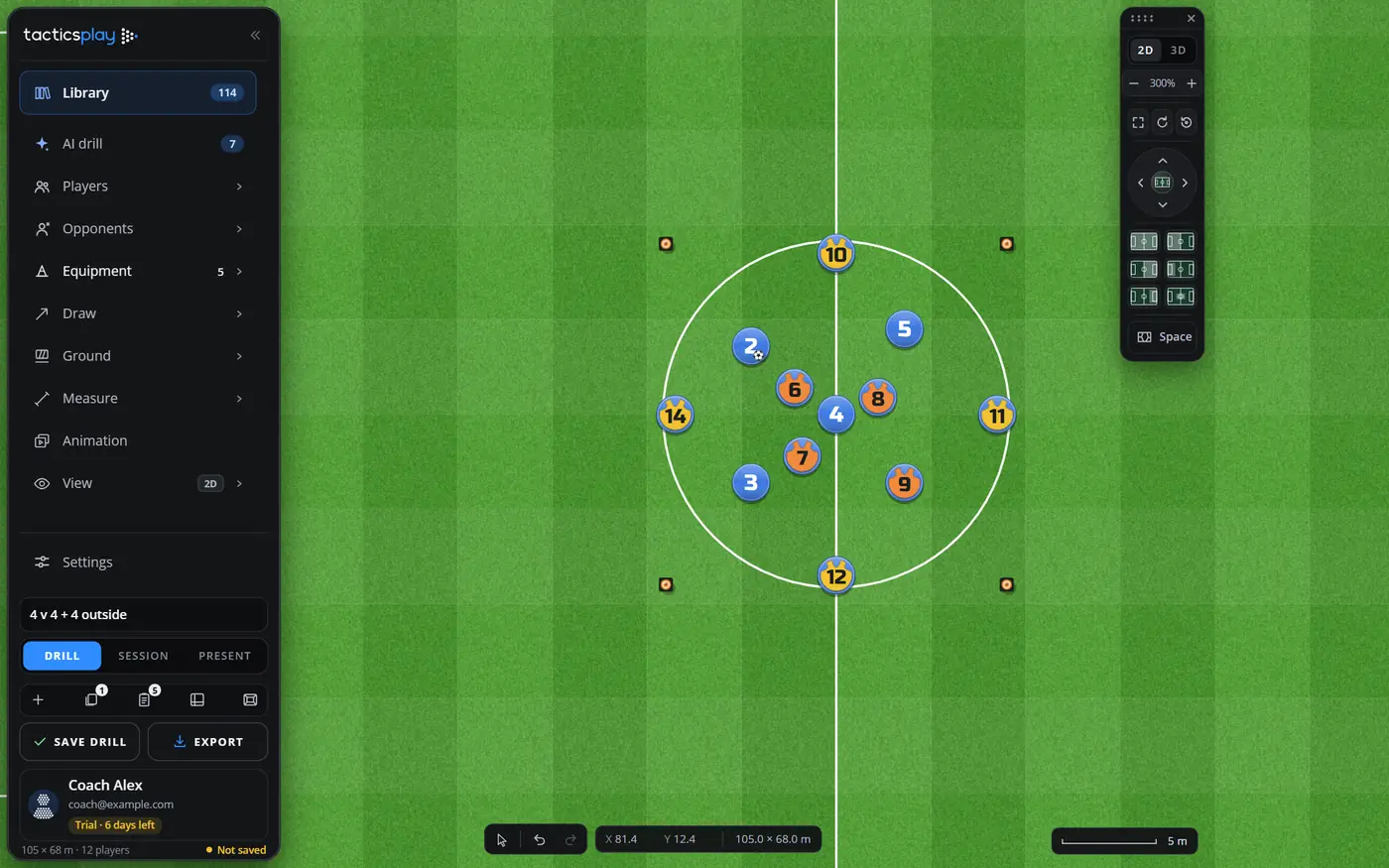
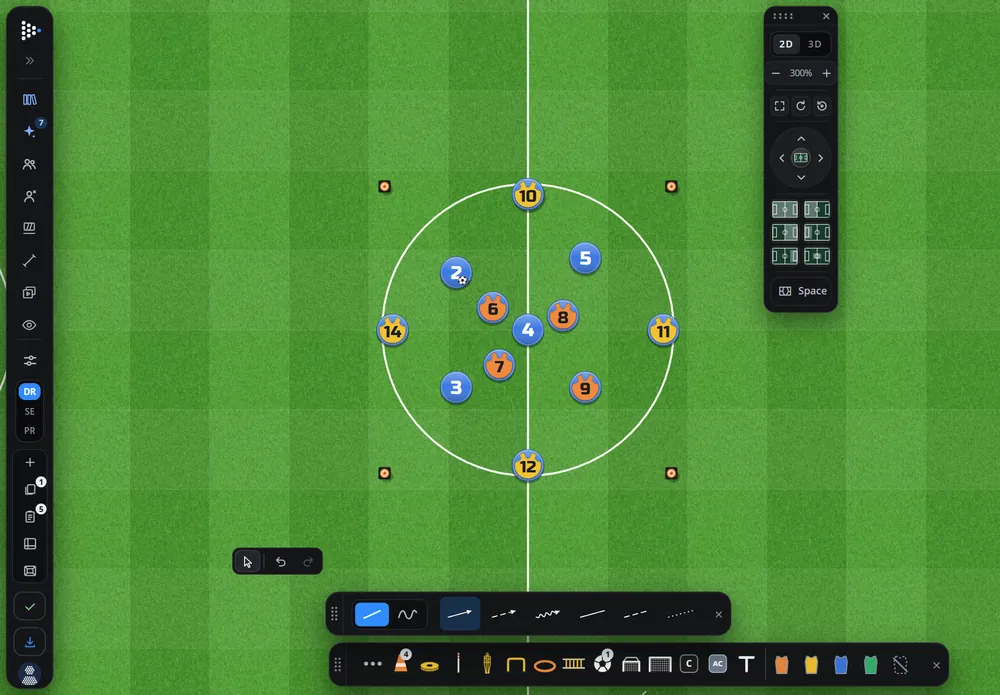
Everything starts from the sidebar on the left. From the top:
Library: 114 ready drills and sessions by match day.
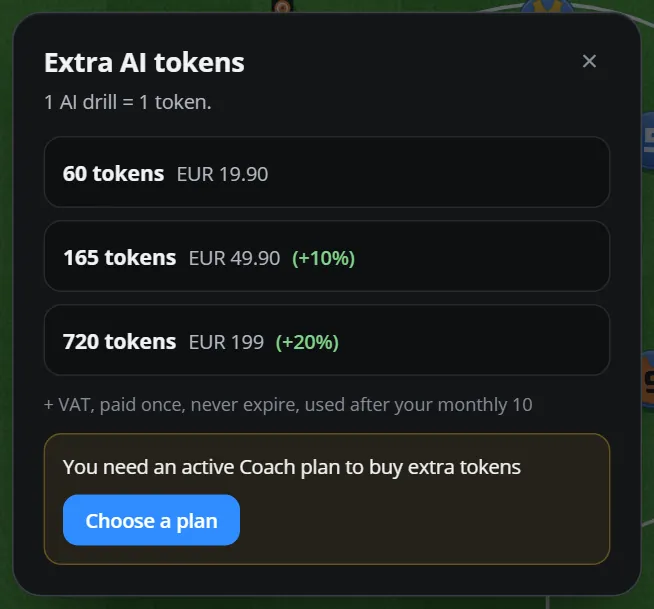
AI drill: describe a drill and the AI places it. The pill shows the AI tokens you can use.
Players, Opponents, Equipment, Draw, Ground, Measure, Animation, View: each opens its tools under itself. Some of them may stand out on the board as cards (see below).
Settings: everything you set once and leave.
The name of the drill, then the switch Drill / Session / Present.
Small buttons: New drill (+), Clipboard, What to bring, Views and Everything 10% smaller.
Save drill and Export, and your account at the foot.
Tip Hover over any button and wait a moment: a short label says what it does.
Press the double arrow at the top right of the sidebar (or double-click its logo) and it folds to a narrow column of icons, so the pitch gets more room. Press it again to open it. Every tool still works from the icons: a press opens that section beside the column.
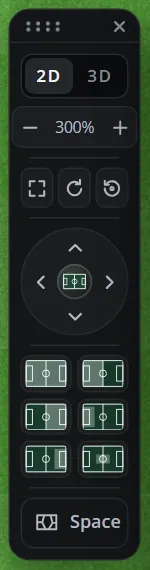
Each section of the sidebar can stand out on the board as a card: Players and Opponents as columns at the left or right, Equipment, Draw, Ground and Measure as bars at the foot, the View controls at the right.
Drag a section out of the sidebar (or a card by its dotted grip).
While it is in your hand, the places it can go are shown. Drop it on one, or anywhere on the board to let it float.
To send a card back into the sidebar, press its ×.
The app remembers where your cards stand on this device.
When Equipment, Draw, Ground and Measure stand at the foot of the board they become slim bars, one above the other. They work exactly like the sections of the sidebar. A small number on a piece tells you how many of it are on the pitch.
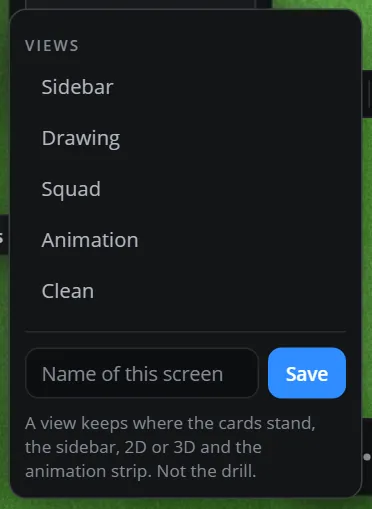
Press the Views button (the small window icon at the foot of the sidebar) to switch the whole screen at once:
Sidebar: every tool inside the sidebar, the board clear.
Drawing: the sidebar as icons, Equipment and Draw at the foot.
Squad: Players at the left, Opponents at the right, Equipment at the foot.
Animation: the animation strip open and Draw at the foot.
Clean: just the board and the icons.
Like your own layout? Type a name and press Save. A view keeps where the cards stand, the sidebar, 2D or 3D and the animation strip. It does not change the drill.
The thin strip at the very foot of the sidebar shows the pitch size, how many players are on it and how many steps the drill has. At the right a dot tells you whether the drill is Saved (green), Not saved since its last change (amber) or the board is empty.
On a small laptop or a tablet, press Everything 10% smaller (the last small button of the sidebar, also in Settings > App > Size). All panels shrink so the pitch gets more space. Press it again to go back.
Library
114 ready drills, favourites, your own drills and sessions by match day.
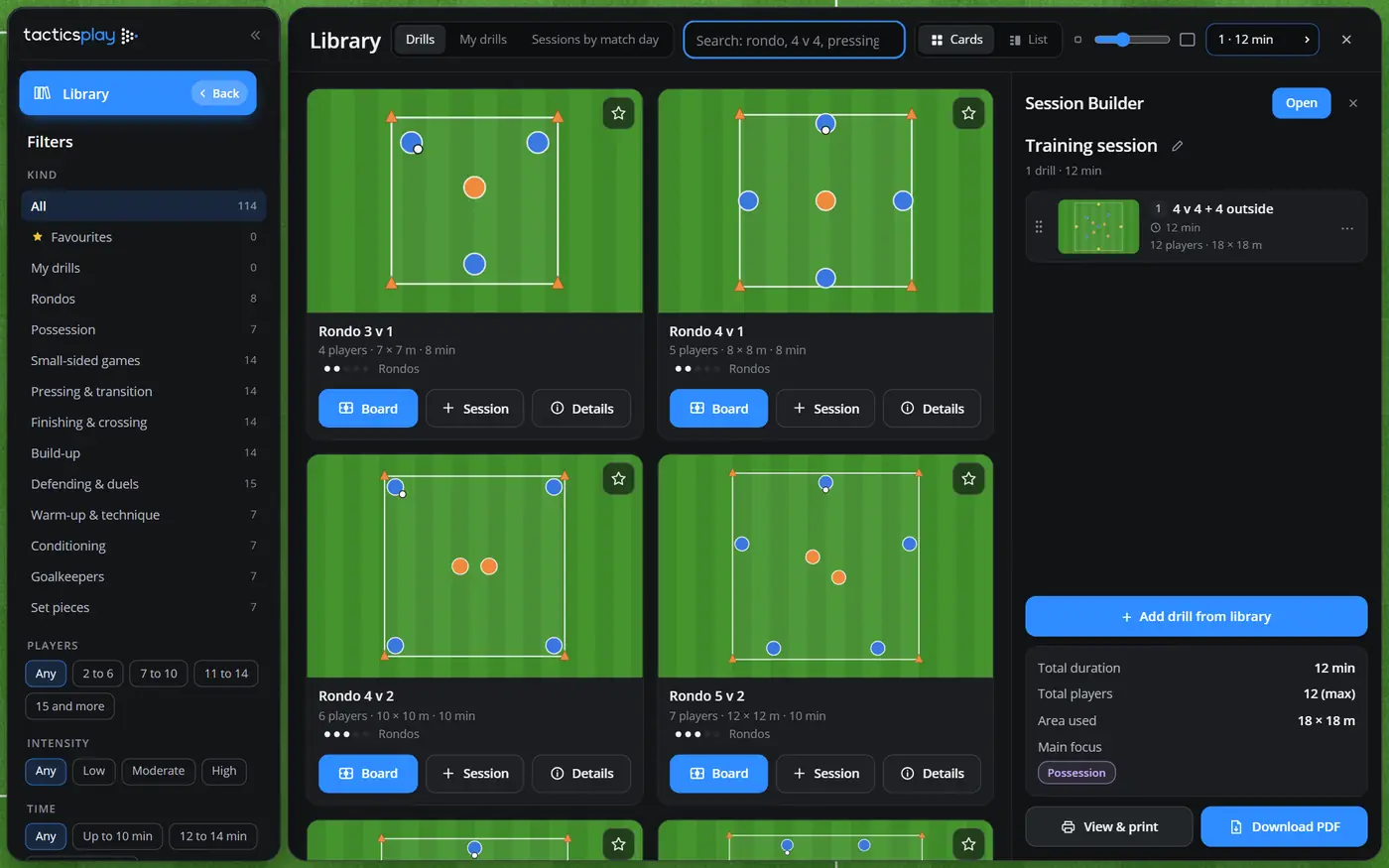
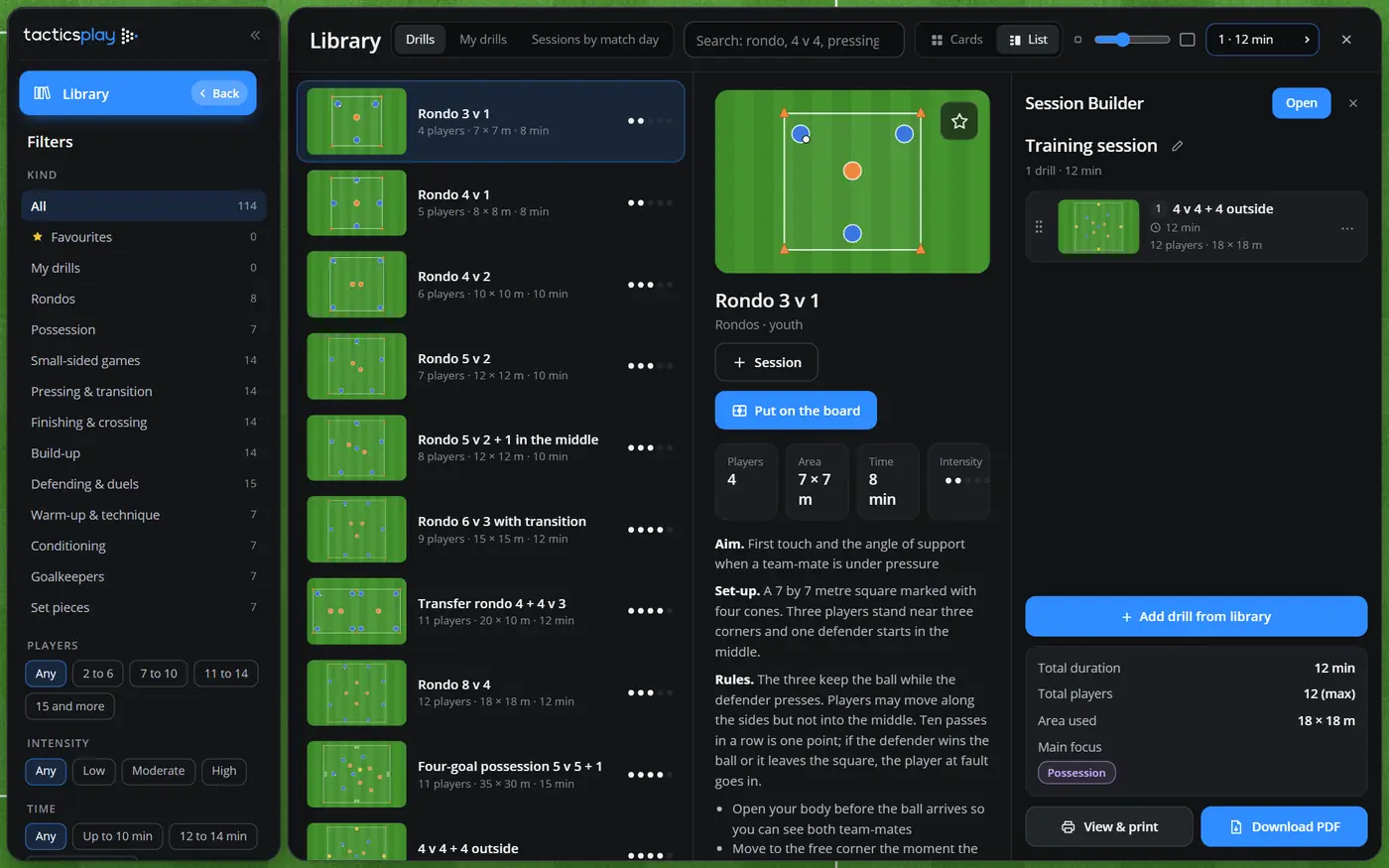
Press Library at the top of the sidebar. A big window opens with 114 drills: rondos, possession, small-sided games, pressing and transition, finishing and crossing, build-up, defending and duels, warm-ups, conditioning, goalkeepers and set pieces.
Search by words, for example rondo, 4 v 4 or pressing.
Filter by kind, number of players, intensity, time and more in the column on the left.
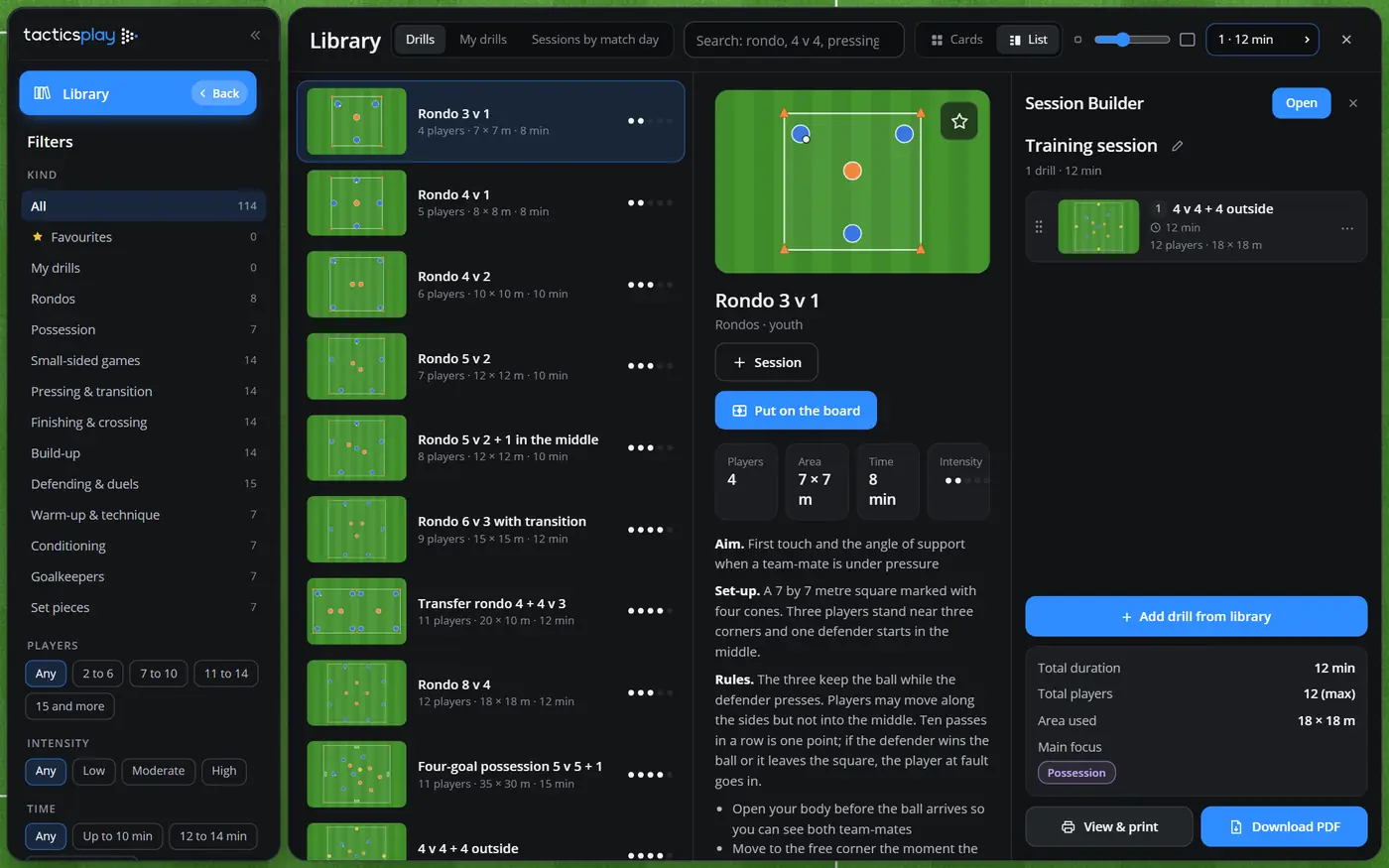
Switch between Cards and List, and make the cards bigger or smaller with the slider.
On each drill: Board puts it on the pitch, Session adds it to the Session Builder, Details shows the aim, set-up, rules, coaching points and progressions.
In List view the drill you pick is shown large beside the list, with its players, area, minutes, intensity, aim, set-up, rules and coaching points. Press Put on the board to use it. Every library drill is placed at real size and stays fully editable: move anything, add steps, change the colours.
Press the star on any drill to add it to Favourites. My drills holds the drills you saved yourself. Both are in the Kind filter on the left of the Library, and both follow you to your other devices when you are signed in.
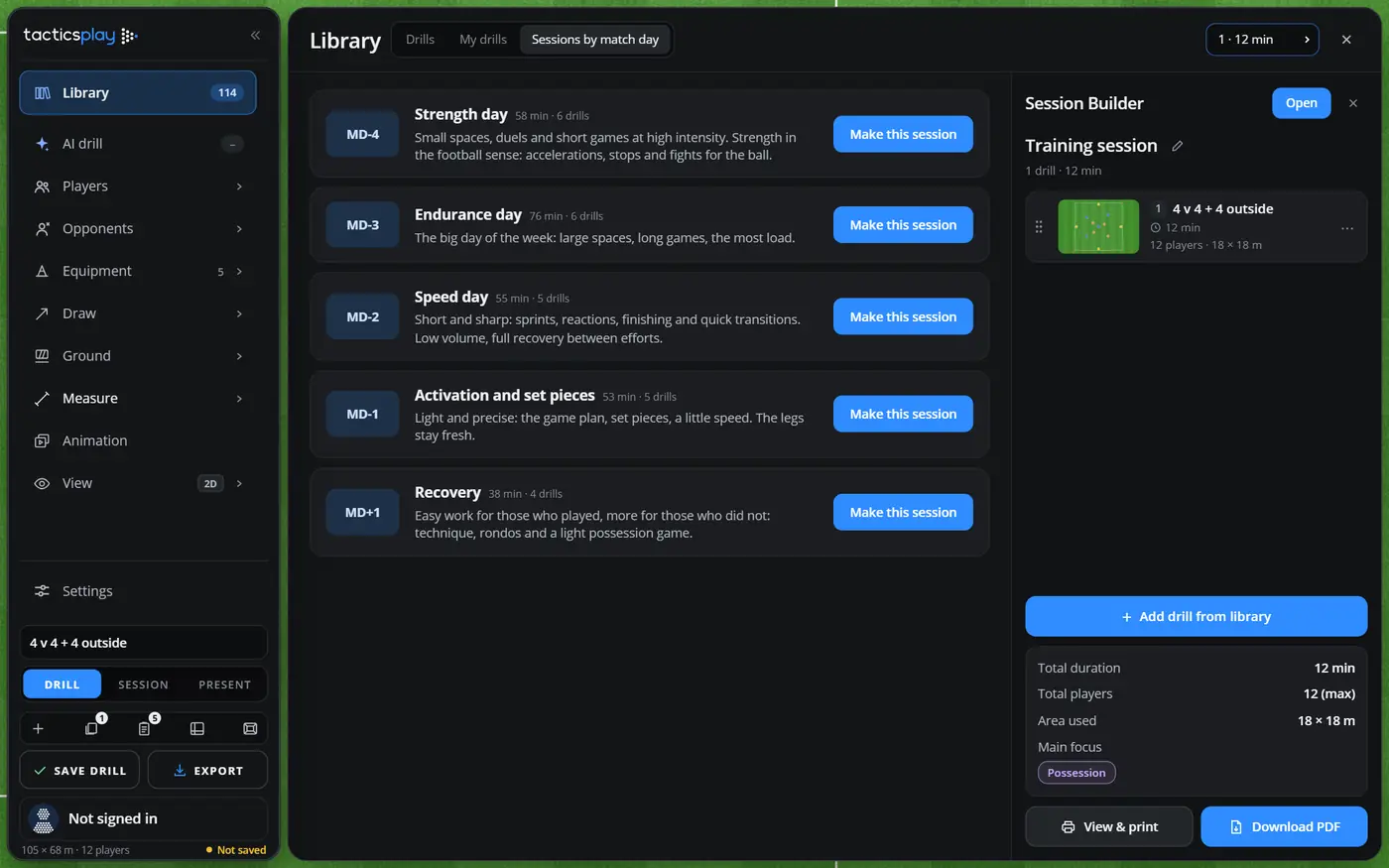
The Sessions by match day tab offers a ready session for each day of the week around the game (strength, endurance, speed, activation and recovery). Press Make this session and TacticsPlay fills it with fitting drills from the library.
At the right of the Library the Session Builder collects the drills of today's session. Drag them by their grip to change the order, rename the session with the pencil, and read the total duration, the most players and the area used. Add drill from library, View & print and Download PDF are at its foot. Open takes you to the full Session page.
AI drills
Describe, say or sketch a drill and the AI places it on the pitch.
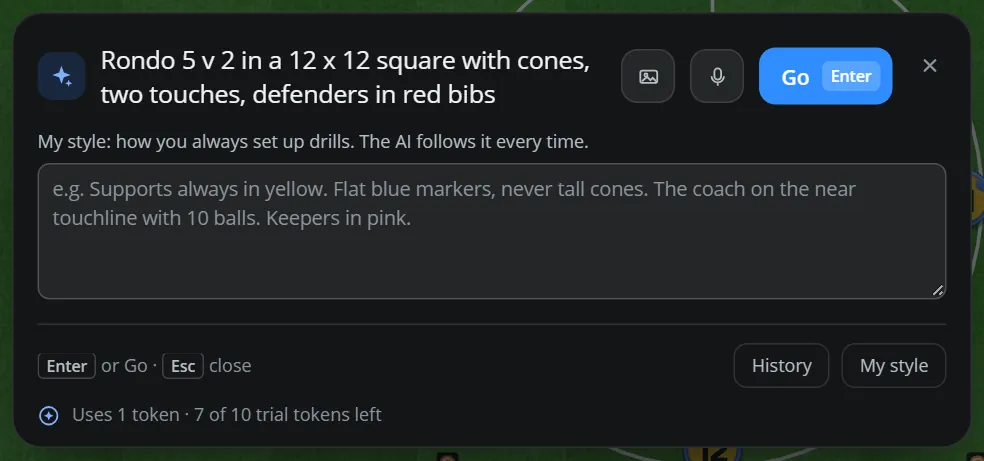
Press AI drill in the sidebar, or tap the Space bar.
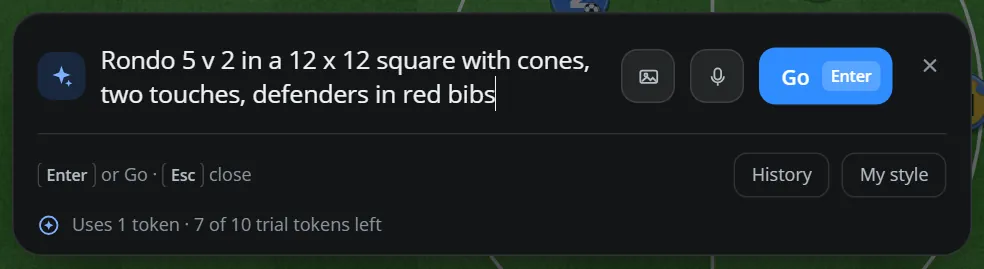
Describe the drill: the size of the area, the players, the equipment and what they do. For example: Rondo 5 v 2 in a 12 x 12 square with cones, two touches, defenders in red bibs.
Press Enter or Go.
The AI places the drill on the pitch as ordinary pieces: players, keepers, bibs, cones, goals and areas at real size. Everything can be moved and changed by hand, and one Undo takes the whole drill away again.
Tip Press the Up arrow in the empty box to bring back your last request and change it.
Press the microphone in the AI box, say the drill, and press it again. Your words appear in the box; press Enter to make the drill. The first time, your browser asks to use the microphone: allow it.
The microphone works only on a secure page (the app at its https address) and in a browser that allows speech input.
Drew the drill on paper or a whiteboard? Press the picture button in the AI box and choose a photo of your sketch (or any picture of a drill). Add a few words if you like, then press Enter. Remove takes the picture away again. Use a clear JPG or PNG; a very large picture may be too much for one request.
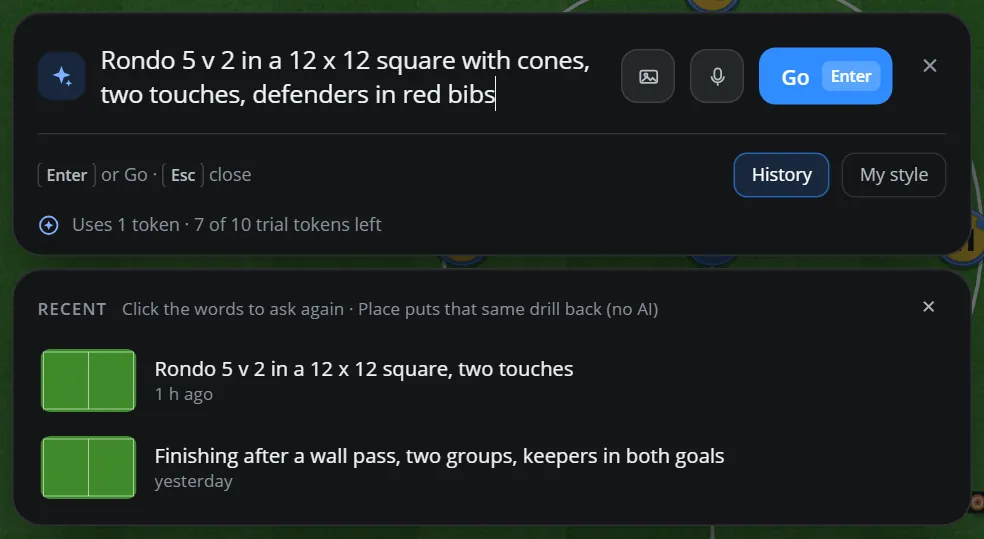
Press History in the AI box to see your recent requests under it, each with a small picture of the drill. Click the words to ask again, or press Place to put that same drill back on the board without asking the AI again.
Press My style and write how you always work, for example: Supports always in yellow. Flat blue markers, never tall cones. The coach on the near touchline with 10 balls. Keepers in pink. The AI follows it in every drill it makes for you.
Pick a formation in the menu of the Players section (4-3-3, 4-2-3-1, 4-4-2, 4-1-4-1, 3-5-2, 3-4-3, 5-3-2 and small-sided shapes such as 3-2-3, 3-3-2, 2-3-1 and 3-2-1) and press the blue button. The team takes its places; players already on the pitch walk to theirs.
The one half button pushes the team up into the other half, for an attack against a defence.
Save formation keeps where your team stands now as a formation of your own, with a name. Remove one of yours with its ×.
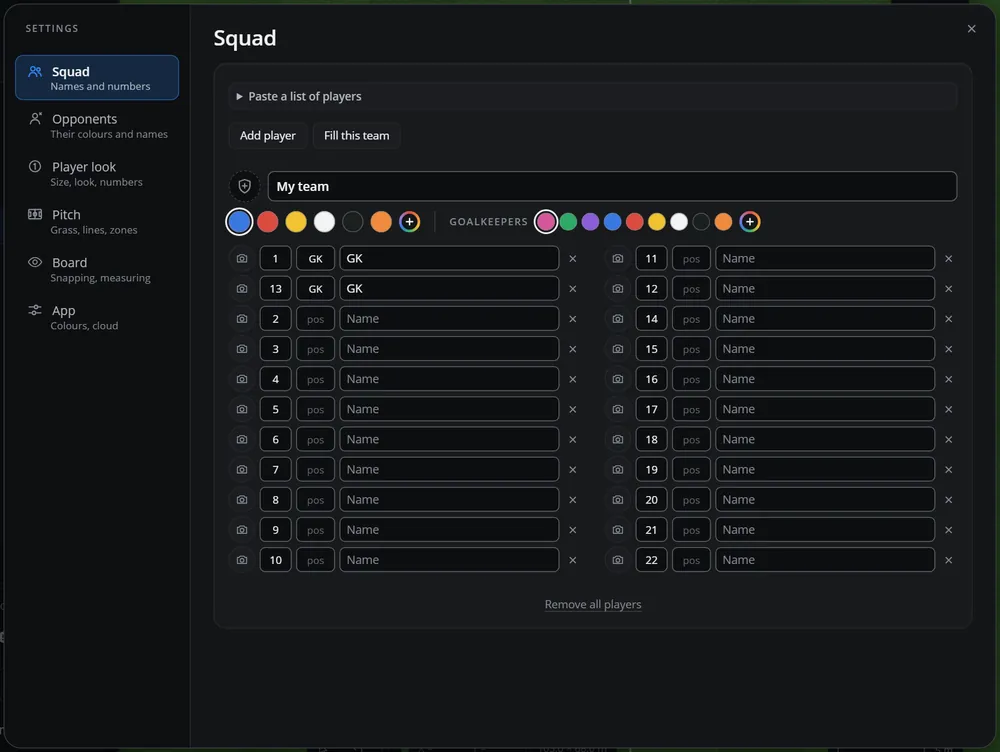
Press Edit on the Players section (or open Settings > Squad). For each player you can set the number, the position (GK, RB, CB, LB, DM, CM, AM, LW, RW, ST), the name and a photo.
Paste a list of players: number, name and position on each line, in any order. Add them to the team, or replace it.
Fill this team gives two goalkeepers and twenty players numbered 1 to 22. Add player adds one more.
Type the team name and add the team logo.
Pick the team colour and the goalkeepers' colour from the dots, or any colour with +.
Remove all players empties the squad (Undo brings it back).
Add a photo with the camera button on a row. The photo editor lets you zoom and centre the face before you save.
Click a player on the pitch. A bar appears at the top of the board where you can change his number, type his name, add a photo, switch the names of all players on or off, change the size and his colour.
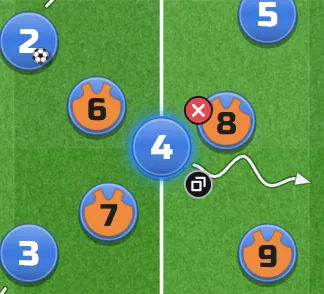
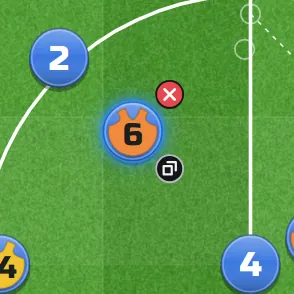
A picked player shows a red × to delete him and a button to duplicate him.
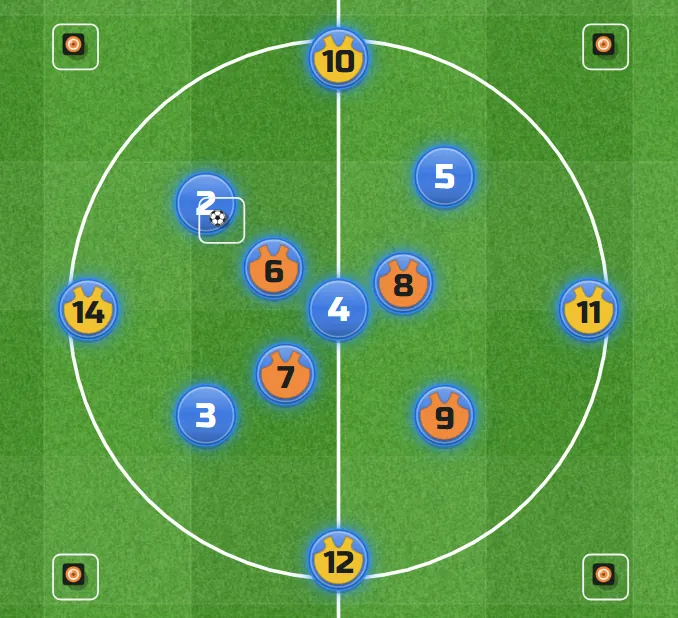
The four bibs (orange, yellow, blue, green) sit in the Equipment tools. Drag a bib onto a player, or press a bib and then click the players who wear it. The bib with a cross takes a bib off. Take all bibs off in the Players section clears every bib in both teams.
Tip Want another bib colour? Press a bib, then a colour dot (or + for any colour): the bib becomes that colour, and so does everyone wearing it.
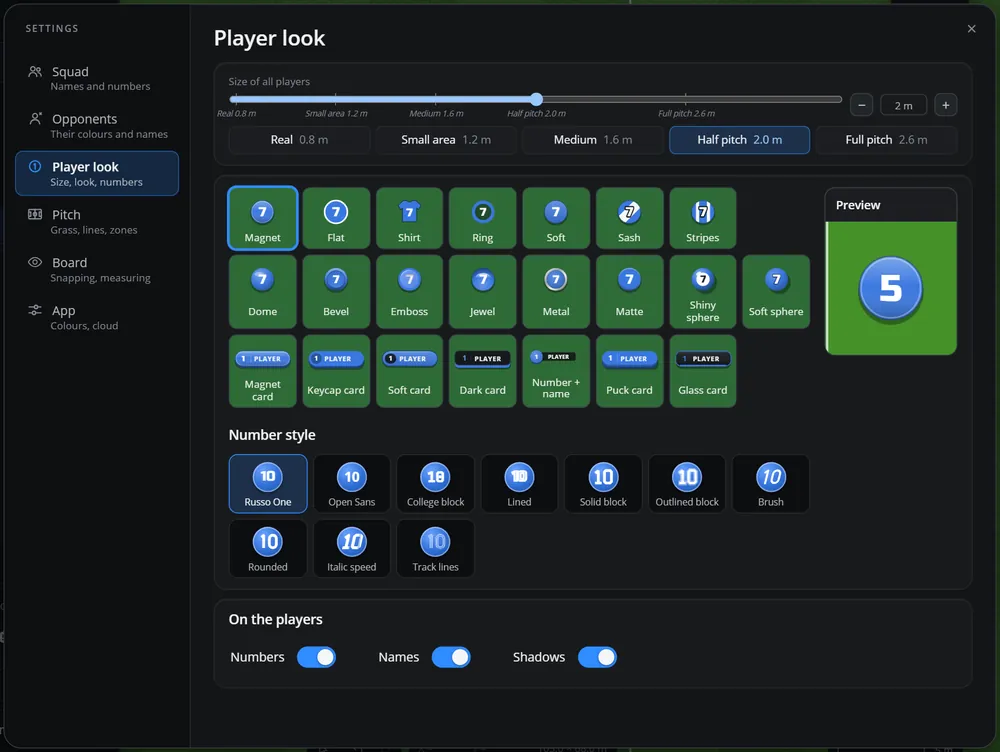
Size of all the players, with ready sizes for the space you use: Real 0.8 m, Small area 1.2 m, Medium 1.6 m, Half pitch 2.0 m and Full pitch 2.6 m (up to 3.2 m).
The look: magnets (Magnet, Flat, Shirt, Ring, Soft, Sash, Stripes, Dome, Bevel, Emboss, Jewel, Metal, Matte), two spheres (Shiny and Soft) and cards that show the name (Magnet, Keycap, Soft, Dark, Number + name, Puck and Glass card).
Number style: Russo One, Open Sans, College block, Lined, Solid block, Outlined block, Brush, Rounded, Italic speed and Track lines.
Numbers, Names and Shadows on the players, on or off.
The preview at the right shows the result before you leave.
Opponents
The other team: their colours, names and formation.
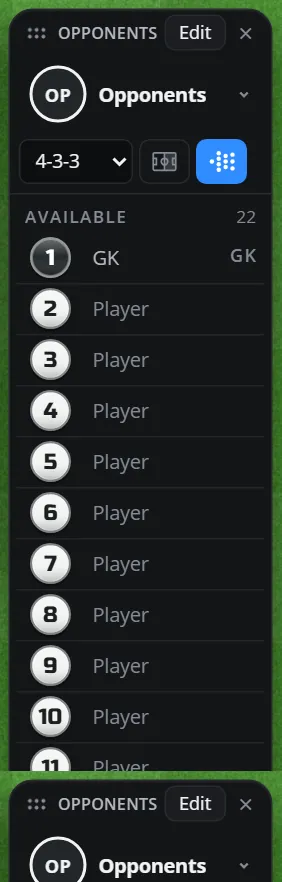
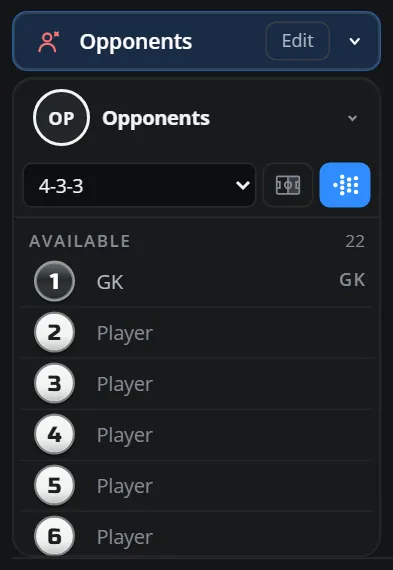
Open Opponents. It works like Players: drag players onto the pitch, or pick a formation and press the blue button. The one-half button puts them in one half only.
You can keep several opponent teams: press the team at the top of the section to switch to another, or + to add a new one. Press Edit (or Settings > Opponents) to set their name, logo, colours, numbers and names, just as for your squad.
Opponents as a card at the right
Equipment
Every piece of kit at real size, the stopwatch and text.
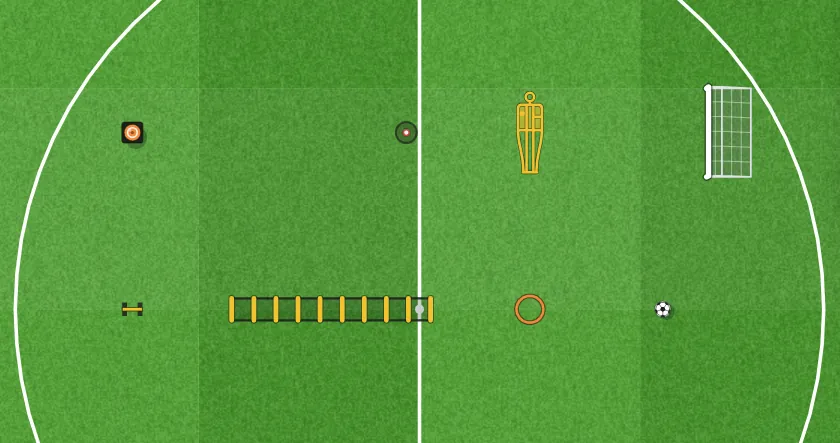
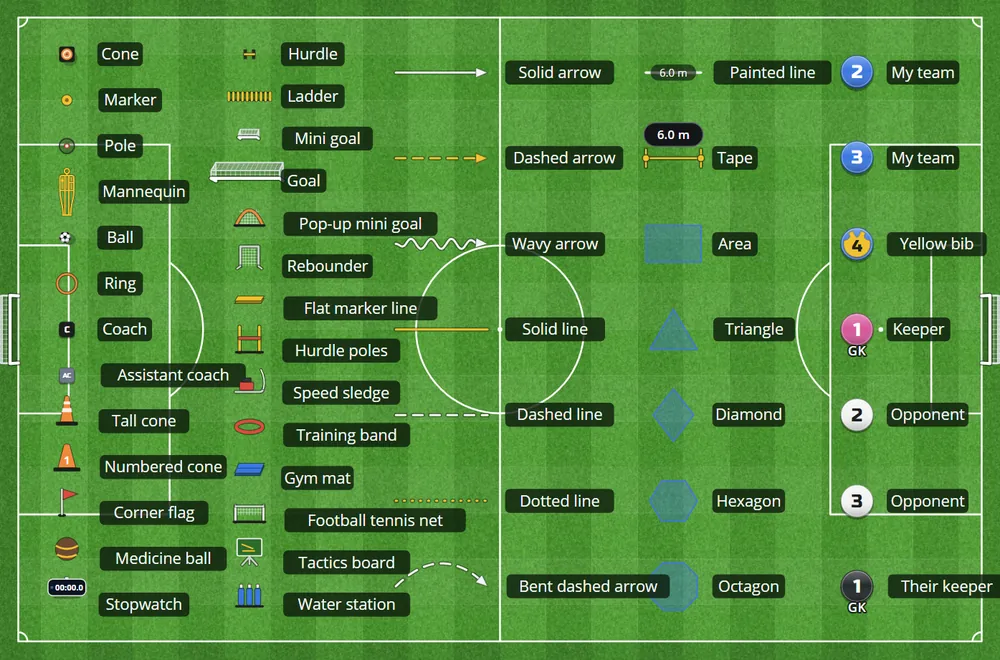
All equipment is drawn at its real size, so the drill on the screen is the drill on the grass.
Main bar
Size
More
Size
Cone
0.23 m
Pop-up mini goal
1.2 m
Marker
0.2 m
Rebounder
1 m
Pole
1.7 m tall
Tall cone
0.3 m
Mannequin
1.8 m tall
Numbered cone
0.25 m
Hurdle
0.46 m
Corner flag
0.5 m
Ring
0.45 m
Flat marker line
1 m
Ladder
4.5 x 0.5 m
Hurdle poles
1.2 m
Ball
0.22 m
Speed sledge
0.8 m
Mini goal
2 x 1 m
Medicine ball
0.3 m
Goal
7.32 x 2.44 m
Training band
0.8 m
Coach
Gym mat
1.8 m
Assistant coach
Football tennis net
3 m
Text
Tactics board
0.9 m
Water station
0.6 m
Stopwatch
6.5 m
Tip Want to see everything at once? Settings > Board > Test board lays out every piece, line and player in rows (it clears the board first, Undo brings it back).
Click a piece to pick it. The bar at the top lets you make it smaller or bigger, change all pieces of that kind at once (All), Rotate it 45 degrees and pick its colour.
+ and -: bigger and smaller.
R: turn 45 degrees.
D: duplicate.
Arrow keys: move it 0.5 m (Shift for 0.1 m).
Delete: remove it.
Equipment stands still in the animation: a cone moved in one step moves in all of them, and it never slides while the steps play.
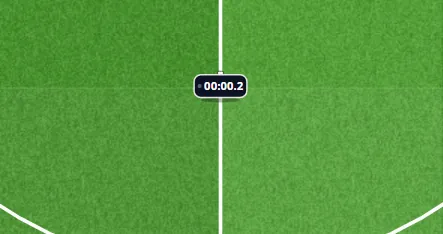
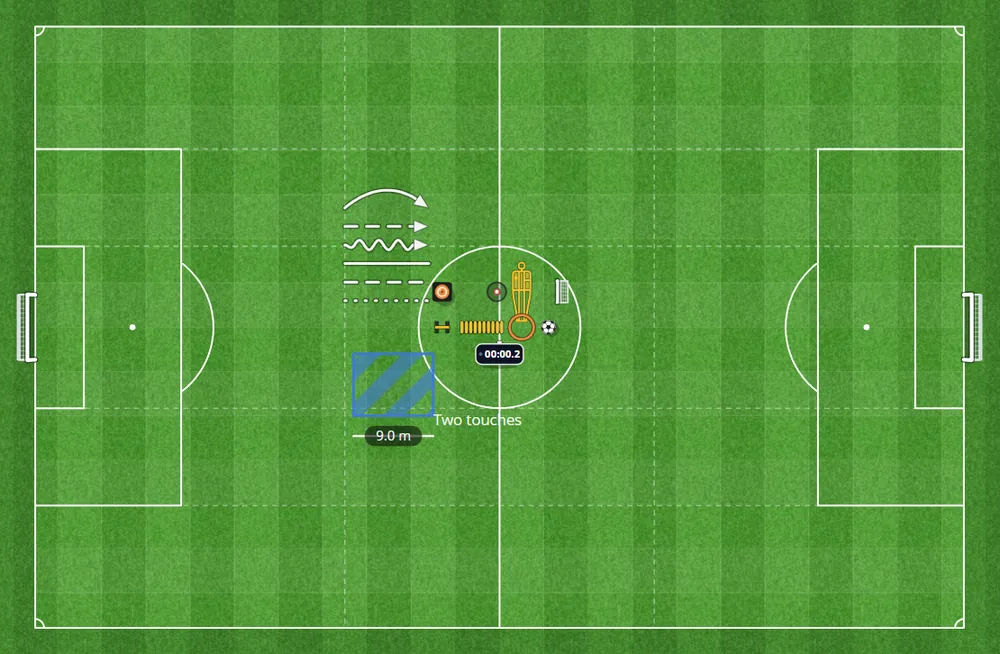
The stopwatch is in Equipment > More. Put it on the pitch and it works: tap it to start, tap again to pause, double-tap to set it back to zero. It counts minutes, seconds and tenths. A picture or a video shows the time it has at that moment. Its time is not saved with the drill.
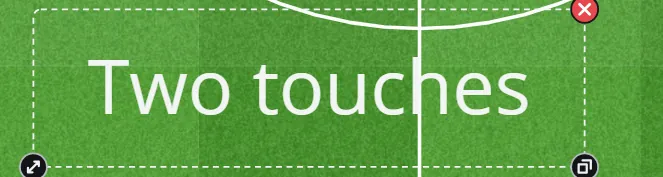
Press Text (the T) and click the pitch, then type. Click the text later to change the words or their style in the bar: bigger or smaller words, bold, italic, left, middle or right, and a dark or light box behind the words.
Ctrl + Shift + > and Ctrl + Shift + <: bigger and smaller words while typing.
The brush at the end of the Equipment tools takes every piece of equipment off the board; the players stay. Press it twice to be sure. Undo brings everything back.
Draw
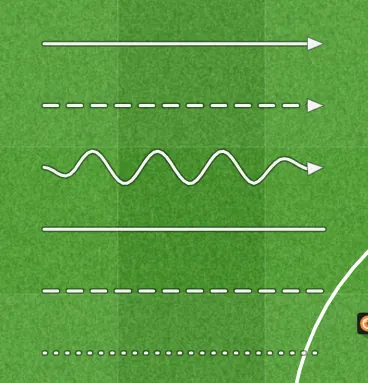
Passes, runs, dribbles and plain lines, straight or freehand, and bent lines.
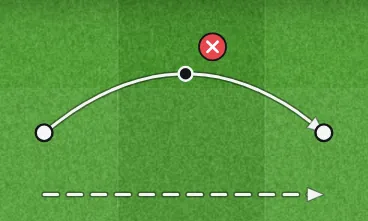
Click a line to pick it. Drag its middle dot to bend it into a curve; drag the end dots to move its ends. The bar at the top changes how thick it is, solid or dashed, and its colour. Straighten makes it straight again. Delete (or the red ×) removes it.
The bar of a picked line
Ground and zones
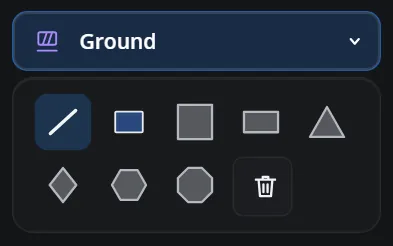
Painted lines, areas, shapes, fills and zones over the pitch.
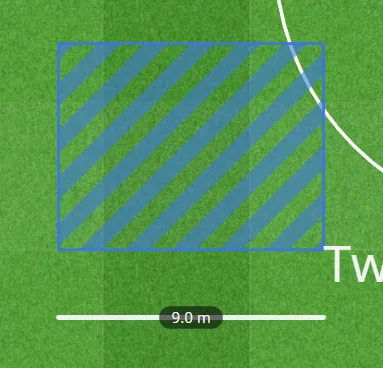
Click an area to pick it. In its bar you can type the exact width and height in metres (the area in m² is shown), choose a fill (solid, diagonal stripes, hexagons, cross-hatch, lanes or outline only), set the opacity, pick the colour, Duplicate or Delete it.
For a picked line you can type its length and angle. Hold Shift while dragging an end to turn it in steps of 15 degrees.
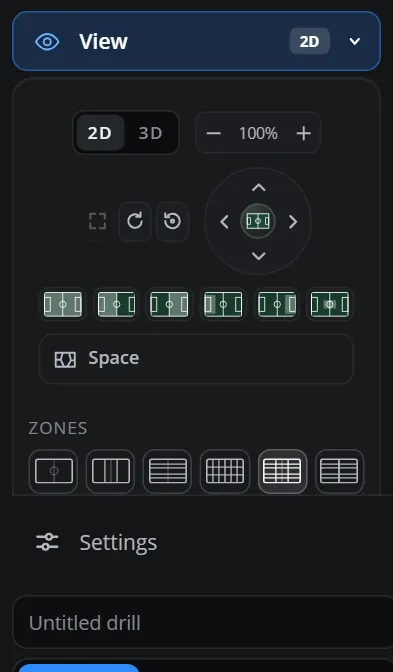
Open View and pick the Zones: off, thirds, lanes, 18 zones, thirds and lanes, or halves. You can also number the zones, shade the half-spaces and set how strong the zone lines are.
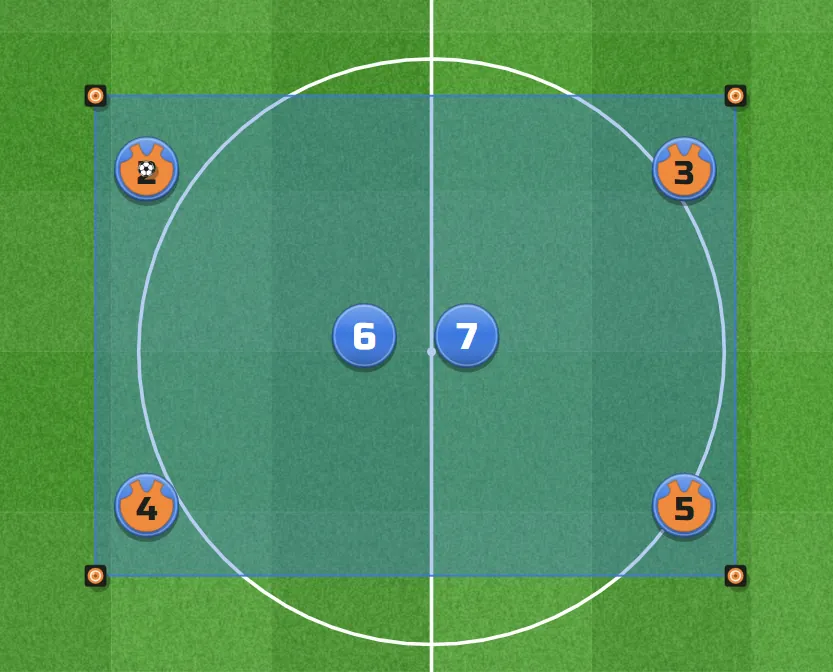
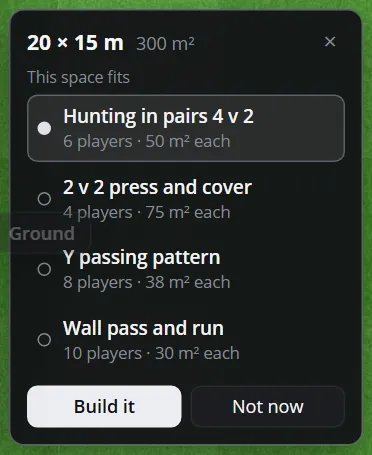
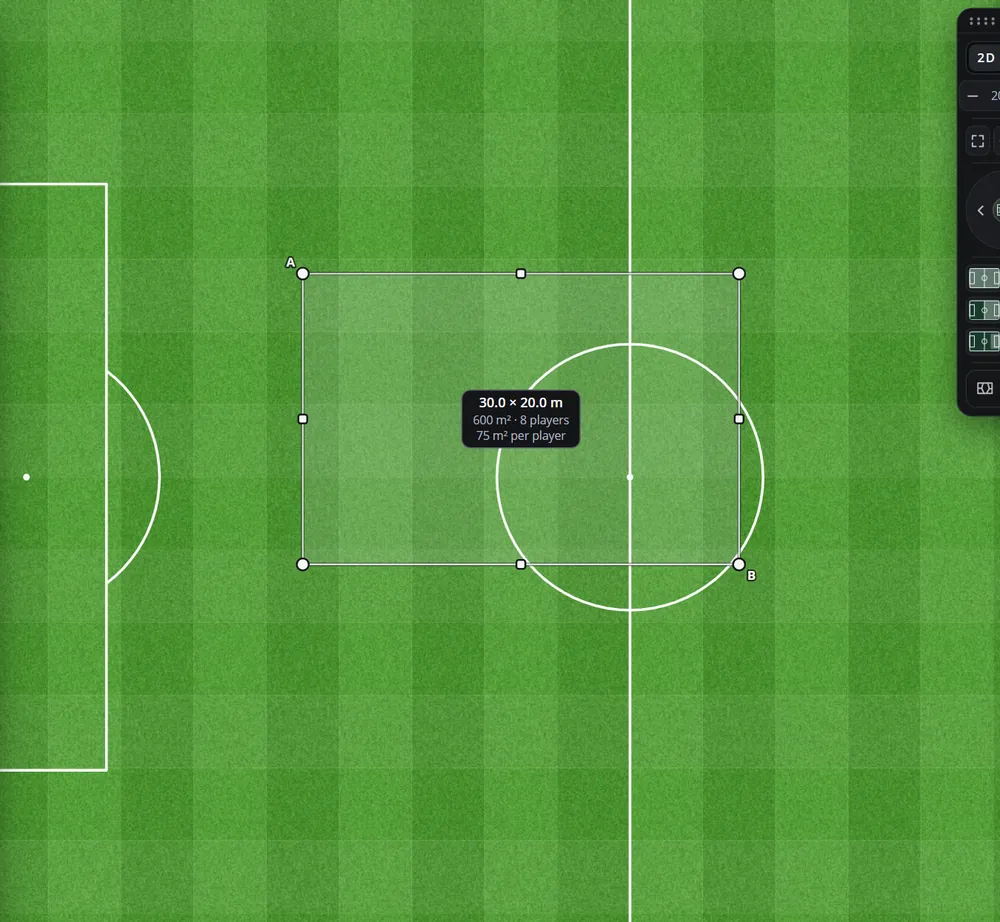
Draw a rectangle area and TacticsPlay suggests drills that fit its size, with the players and the space each player gets. Pick one and press Build it: players, bibs, cones and a ball are set up at real size. One Undo takes it away.
After Build it
When players already stand in a space, Save this as my pattern keeps them as a pattern of your own; a space of that size will offer it first next time.
Measure
Distances, areas per player, ready-made sizes and the space of each player.
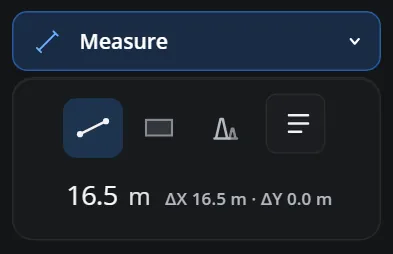
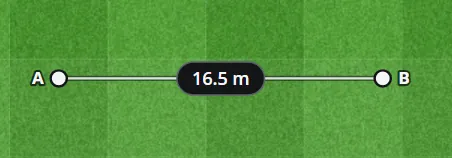
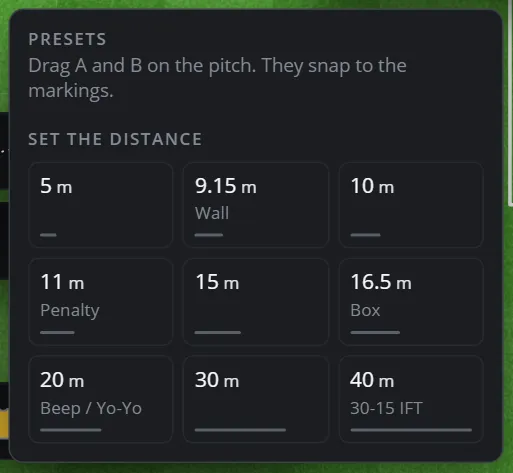
Open Measure, choose the line and drag on the pitch from A to B. The distance shows on the line and in the panel. Drag A or B to change it, or type the distance. Cones on A and B puts a cone on each end.
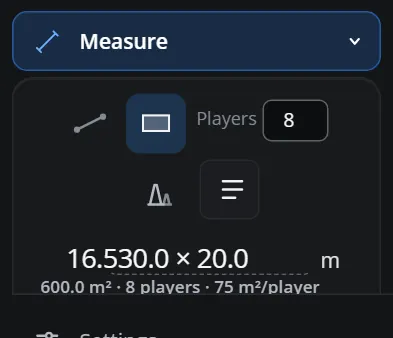
Choose the rectangle and drag on the pitch, or type the size, for example 40x30. Type how many players play in it (without goalkeepers) and you get the area per player.
Distances: 5 m, 9.15 m (wall), 10 m, 11 m (penalty), 15 m, 16.5 m (box), 20 m (beep / Yo-Yo), 30 m and 40 m (30-15 IFT).
Jump a point to the centre, the penalty marks, the corners and the corners of the boxes.
Areas on the pitch lines (penalty area, double penalty area, half pitch, between the areas), areas by match load for adults with keepers, possession and youth (they use your number of players), research pitches for 5 v 5, official formats (FA, DFB, futsal) and a rondo.
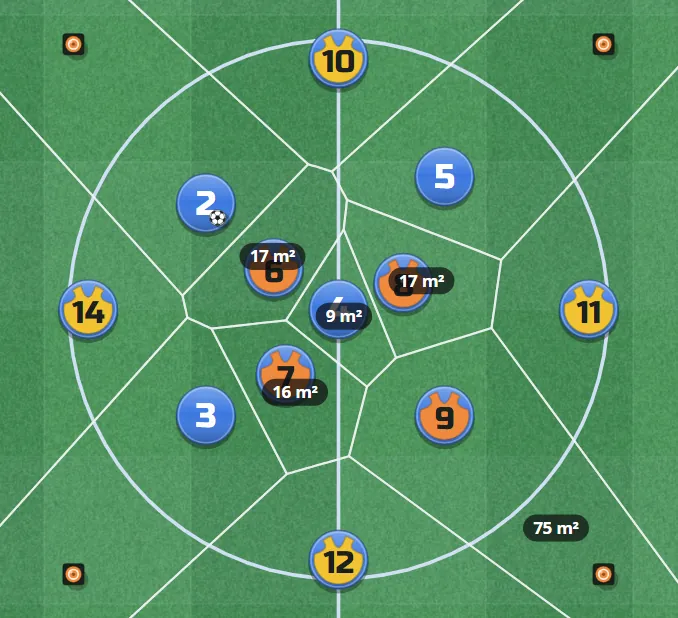
Press Space in the View card. Every spot of the pitch is given to the nearest player; each player's area is drawn in his colour with its square metres, and a small card gives each team's share of the pitch in percent. It updates while you drag and while the steps play, in 2D and 3D. It is also in the animation strip.
Pitch and view
The true-to-scale pitch, pitch sizes, 2D and 3D, zoom and turning.
Everything in TacticsPlay is in metres: the pitch, its markings, the players and every piece of kit. In 2D, from straight above, every distance you see is true. Where the pointer is on the pitch is shown in metres in the small box at the foot of the board, with the pitch size.
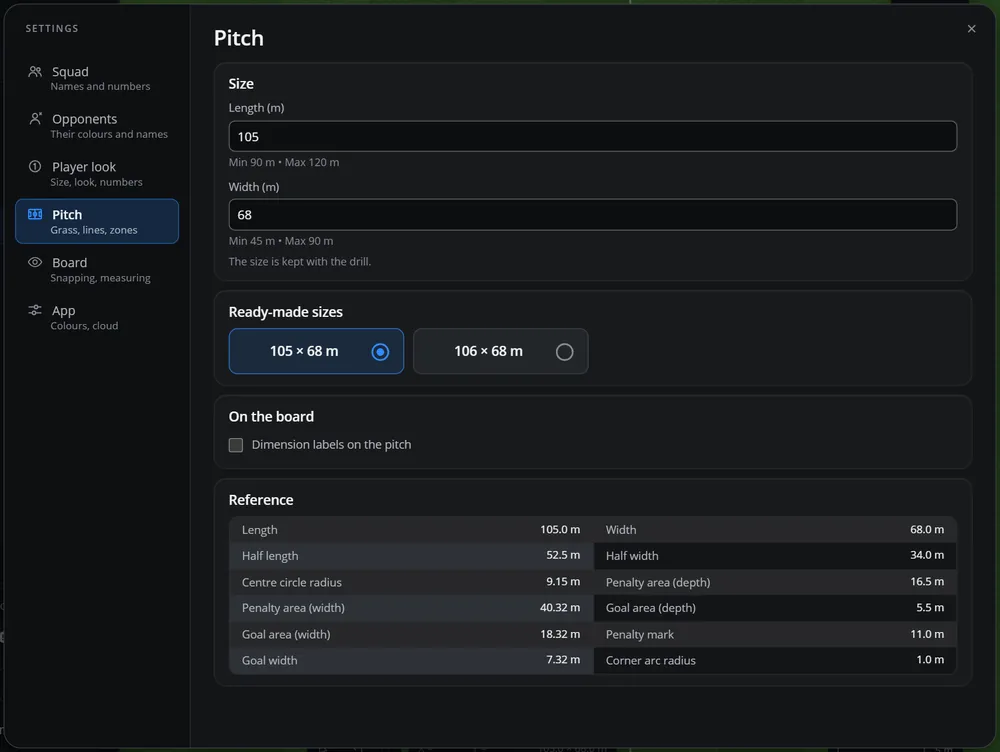
Open Settings > Pitch and type the length (90 to 120 m) and width (45 to 90 m), or pick a ready size. The size is kept with the drill. You can also show the dimension labels on the pitch, and read the true sizes of every marking in the reference table.
In 3D the players stand up as discs, poles and mannequins rise from the grass and the ball can fly above it. Everything still works in 3D: drag, draw and animate as usual.
Ctrl + C copies what is picked: one piece, a line, an area or a group. Ctrl + V puts a copy 2 m beside it and picks it, so the next paste goes 2 m further. On a Mac use Cmd. D duplicates a picked piece straight away.
Ctrl + Z undoes the last change and Ctrl + Y (or Ctrl + Shift + Z) does it again. Undo takes back every change: moves, lines, areas, the squad, the steps of the animation and a whole drill placed by the AI or the library. The undo and redo arrows are also in the small bar at the foot of the board.
Animation
Steps, play, curved runs, passes, dribbles, the ball in the air and the path.
Press Animation in the sidebar. The animation strip opens under the board with step 1.
Press + to add a step. It starts as a copy of the step before.
Move the players and the ball to where they are in this step.
Add more steps the same way, then press Play (the TacticsPlay mark).
Click a step in the strip to go to it; hover over a step to see it large. The speed buttons play at 0.3×, 0.5×, 1×, 1.5×, 2× or 3×. The bin deletes the step you are on.
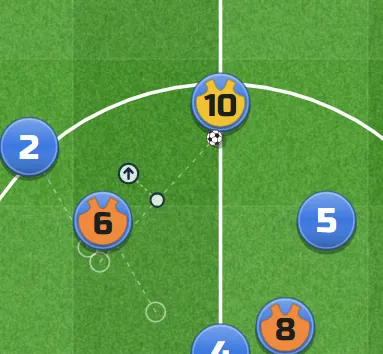
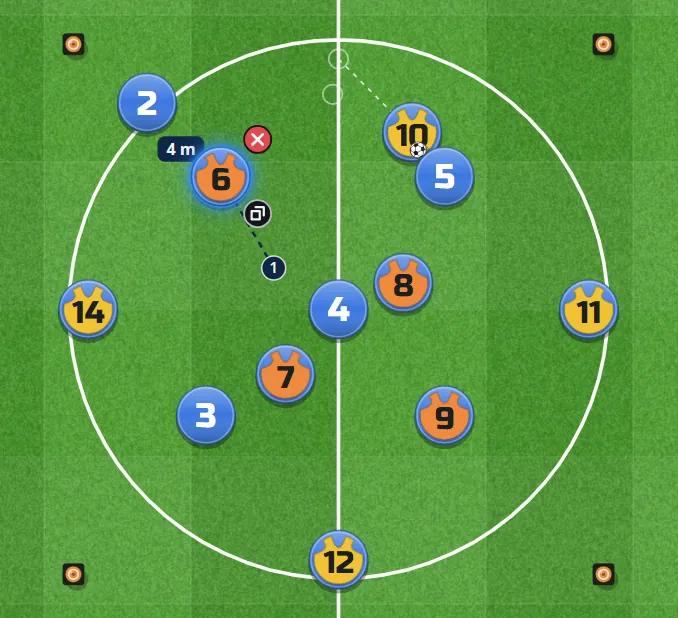
In a step, pick a player: a faint line shows his run from where he was in the step before, with a small dot in the middle. Drag the dot to bend the run. New dots appear either side, so you can bend it again in another place (up to 8 points). Double-click a point to take it away. An arrow you draw for him in that step is followed first.
Move the ball to another player in a step and it is passed to him when the steps play. The ball is quicker than a runner and arrives together with a player who runs onto it.
The ball's faint line has a dot: drag it to bend the pass. Double-click it to make it straight.
Over the dot sits a small arrow: drag it up and the pass goes in the air, its height written beside it (up to 15 m). Drag it back down, or double-click it, and it is on the grass again. In 3D the line becomes the arc of the ball with its shadow.
Dribble or pass: pick a player and the ball together. Choose Dribble and the ball goes with him along his run; choose Pass and it goes its own way.
The Distance button in the strip shows how far each player runs through all the steps, and the total. The Space button shows the area each player owns, step by step.
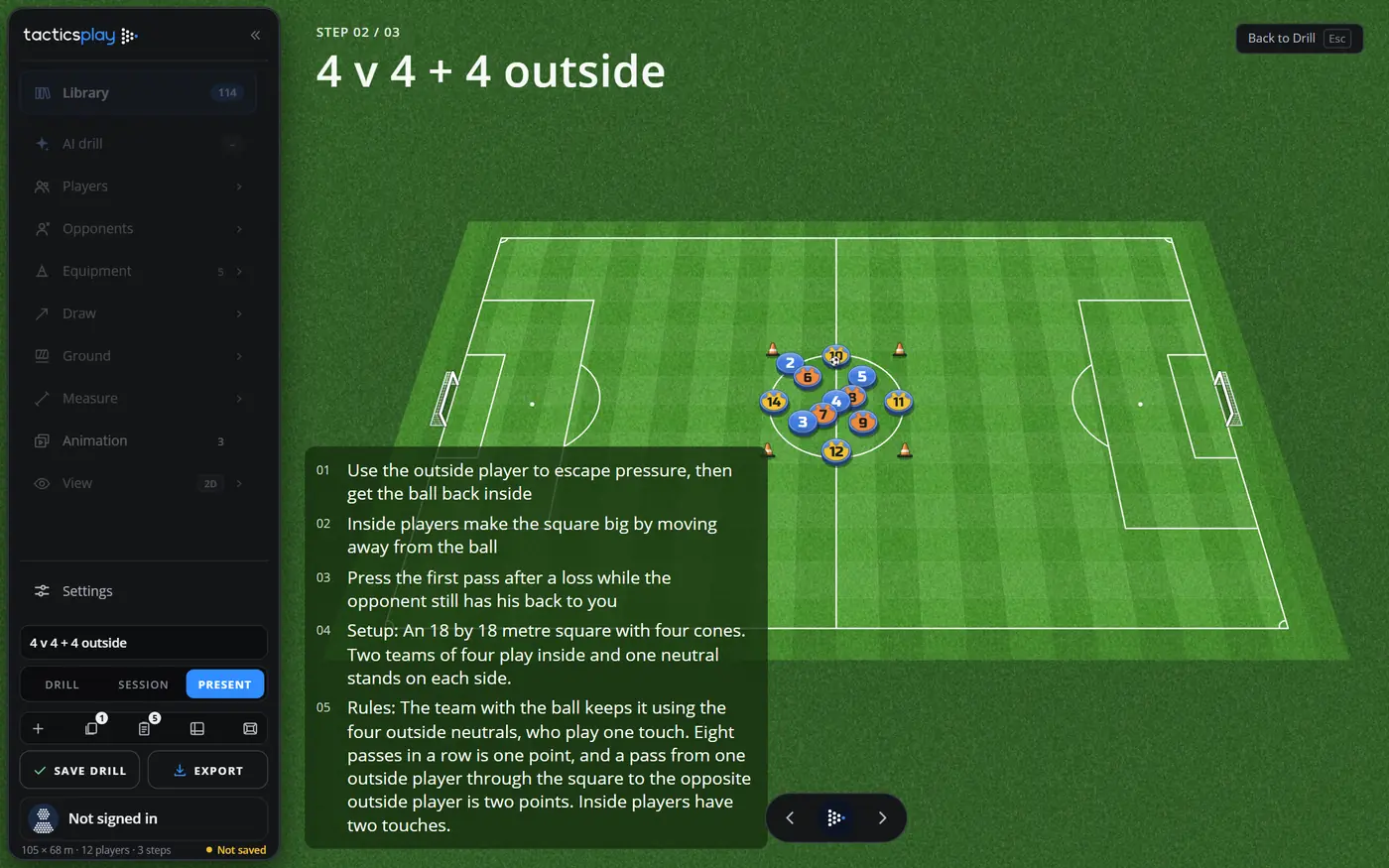
Press Present at the foot of the sidebar. The board fills the screen with the name of the drill, its coaching points and the play controls: perfect for the screen in the meeting room or a TV in the dressing room.
→ next step, ← the step before.
Space play or pause.
Esc back to the drill.
Session and printing
Save drills, build the session, minutes, load, kit and printing.
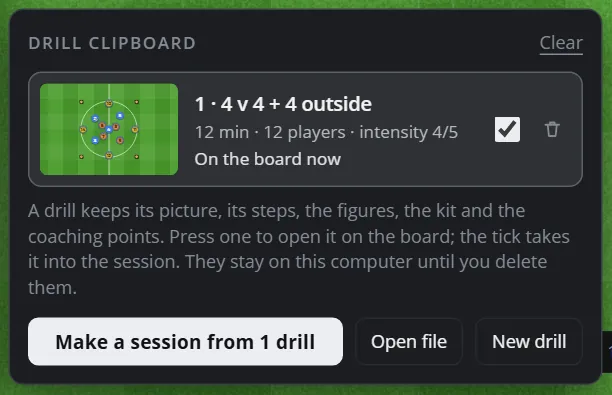
Press the Clipboard button at the foot of the sidebar to see the drills you saved. Press a drill to open it on the board; the tick takes it into the session; the bin deletes it. Make a session builds the session from the ticked drills.
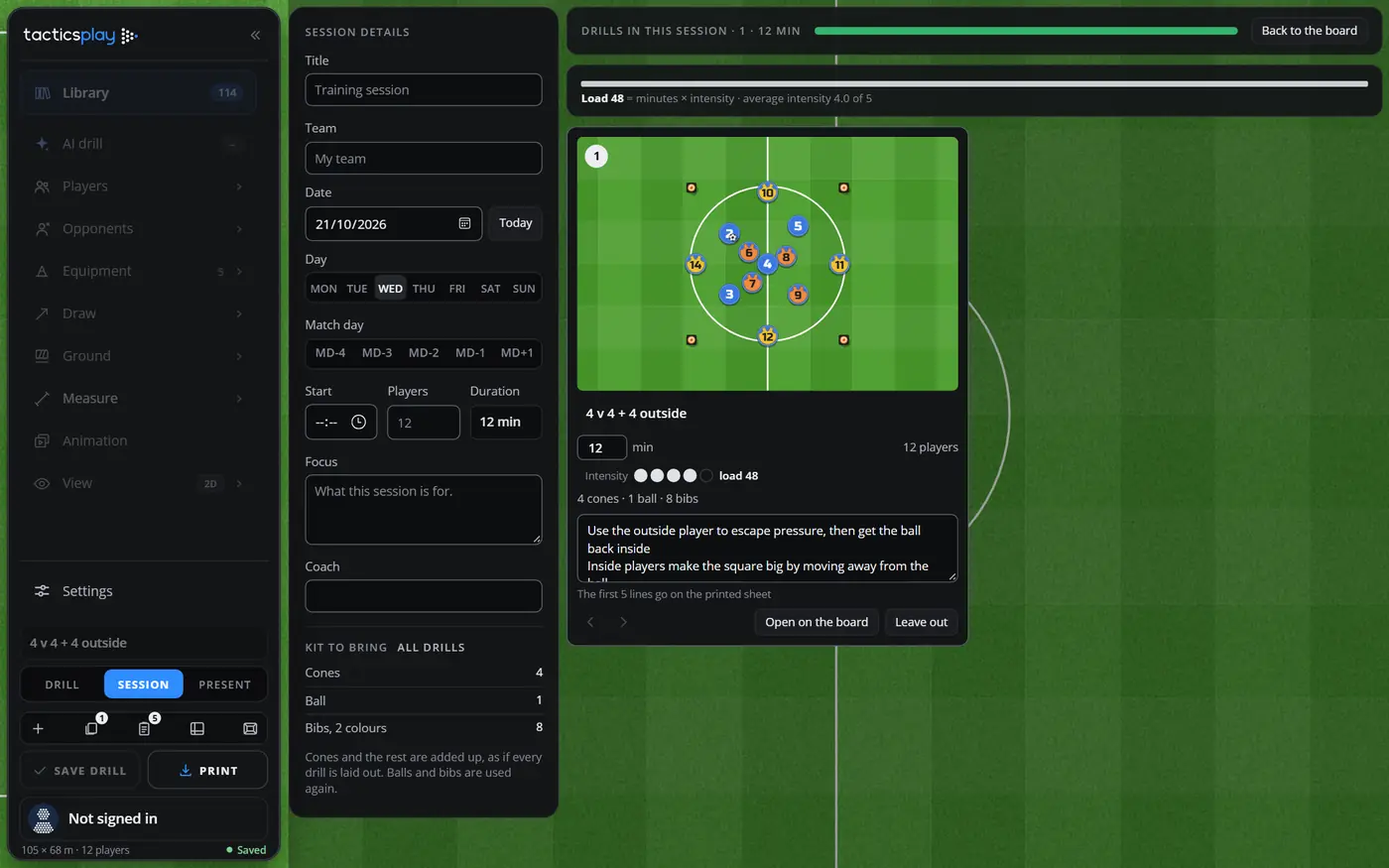
Press Session at the foot of the sidebar. On the left fill in the session details: title, team, date, day of the week, match day (MD-4 to MD+1), start time, players, focus and coach. The duration is added up from the drills.
Each drill shows its picture, minutes, intensity (1 to 5), players, kit and coaching points. The first 5 lines of points go on the printed sheet.
Change the order of the drills, open one on the board, or leave it out.
The load of each drill is minutes × intensity, added up for the whole session, with the average intensity.
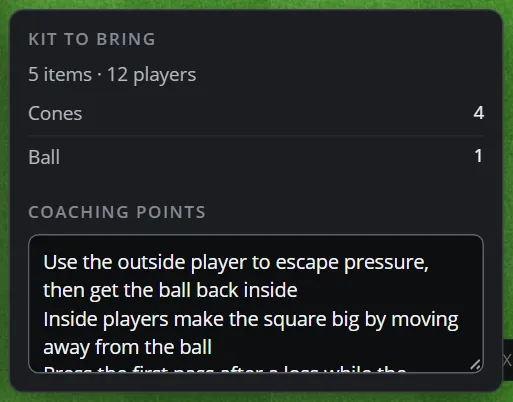
The What to bring button shows the kit of the drill on the board (cones, balls, bibs and the rest) and its coaching points, one point on each line. The points also show in Present.
On the Session page press Print to print the session on A4, two drills side by side with their pictures, minutes, players, kit and points, and the kit to bring. Or choose Download PDF (in the Session Builder of the Library) to save it straight to a PDF file, with sharp text you can search.
Saving, files and export
Pictures, videos, phone formats, PDF and drill files.
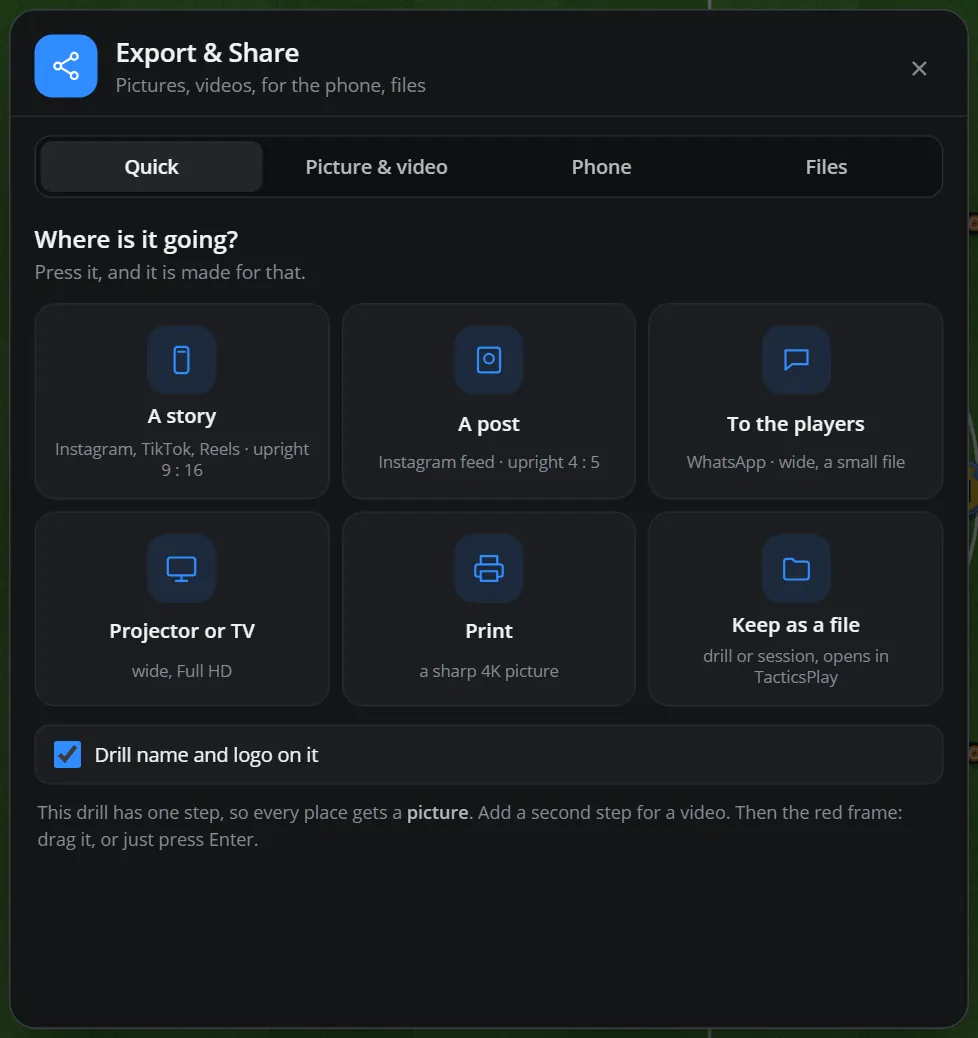
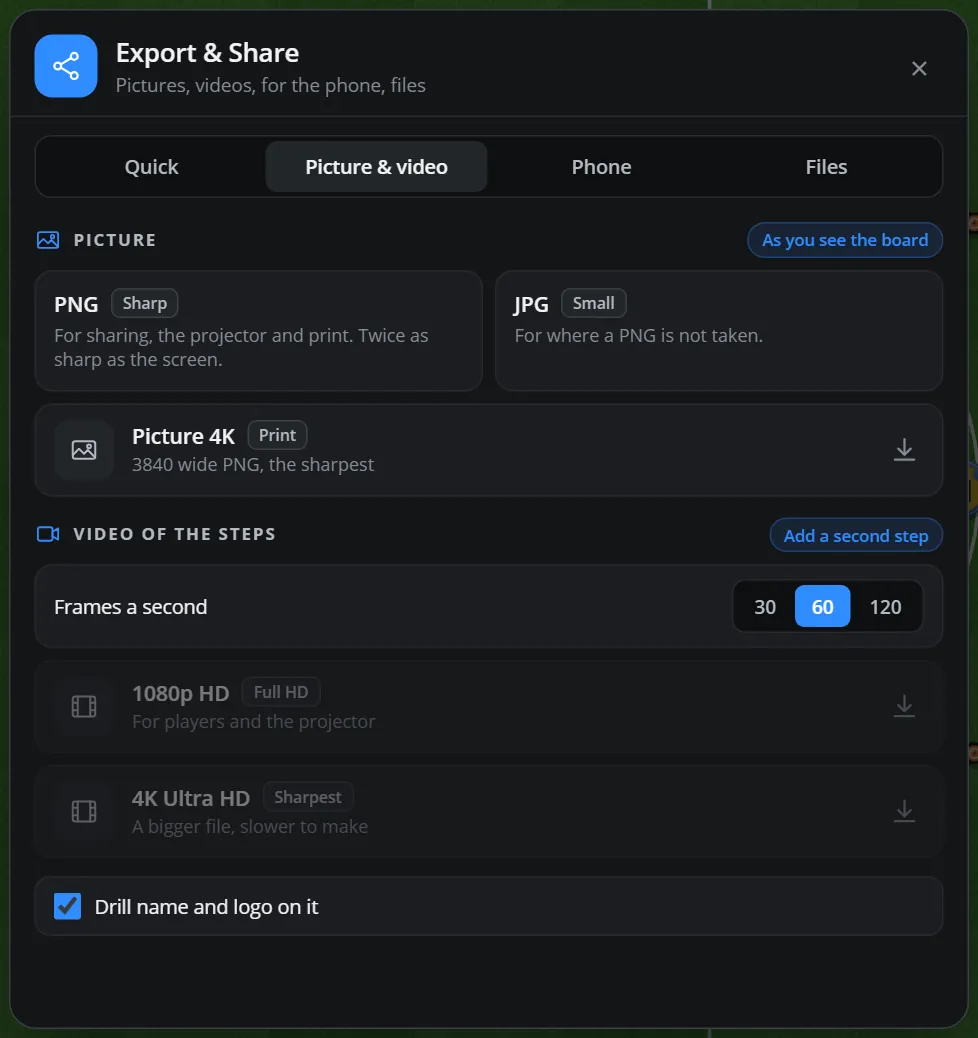
PNG: sharp, for sharing and print. JPG: for places that do not take a PNG. Picture 4K: 3840 wide, the sharpest.
Video of the steps (MP4): needs a drill with at least two steps. Choose 30, 60 or 120 frames a second and 1080p (Full HD) or 4K. 4K is a bigger file and slower to make.
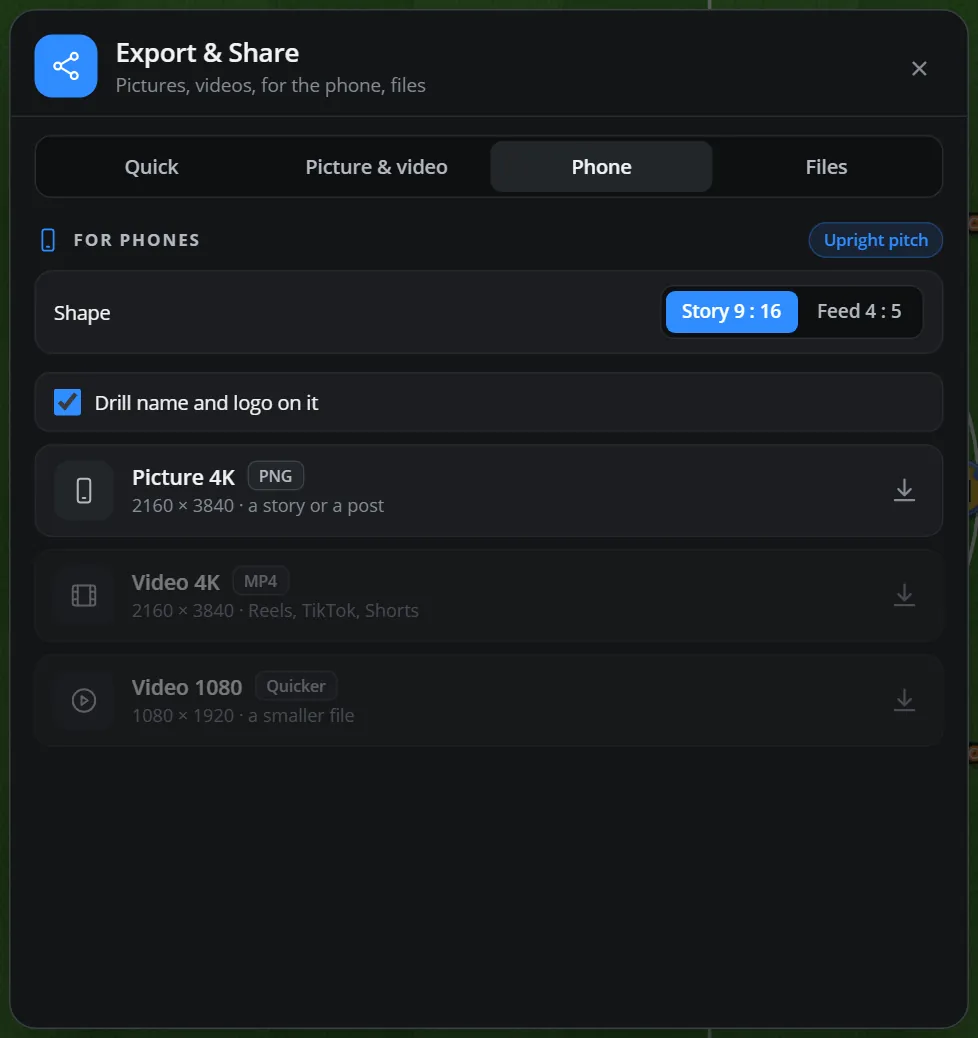
On the Phone tab choose Story 9 : 16 or Feed 4 : 5, then a 4K picture (PNG), a 4K video or a quicker 1080 video (MP4). The pitch is stood up for you, with your goal at the foot, and turned back afterwards.
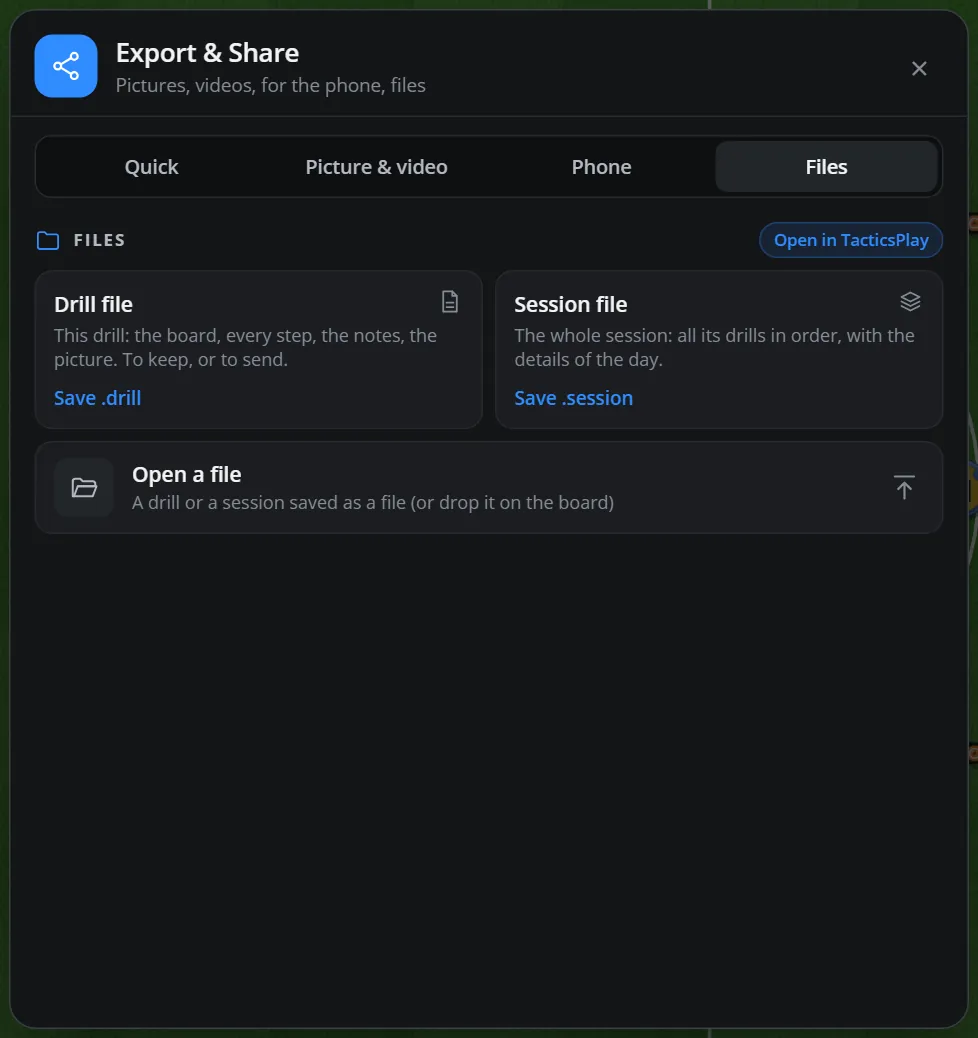
On the Files tab save the drill as a file (with every step and note) or the whole session (all the drills on the clipboard with the session details). Send the file to another coach or keep it as a copy; it opens in TacticsPlay.
To open a file, press Open a file (also on the clipboard), or simply drop the file on the board.
The app makes MP4 videos, PNG and JPG pictures, PDF sessions and drill files. MP4 plays everywhere a GIF would (WhatsApp, Instagram, slides) and is much sharper.
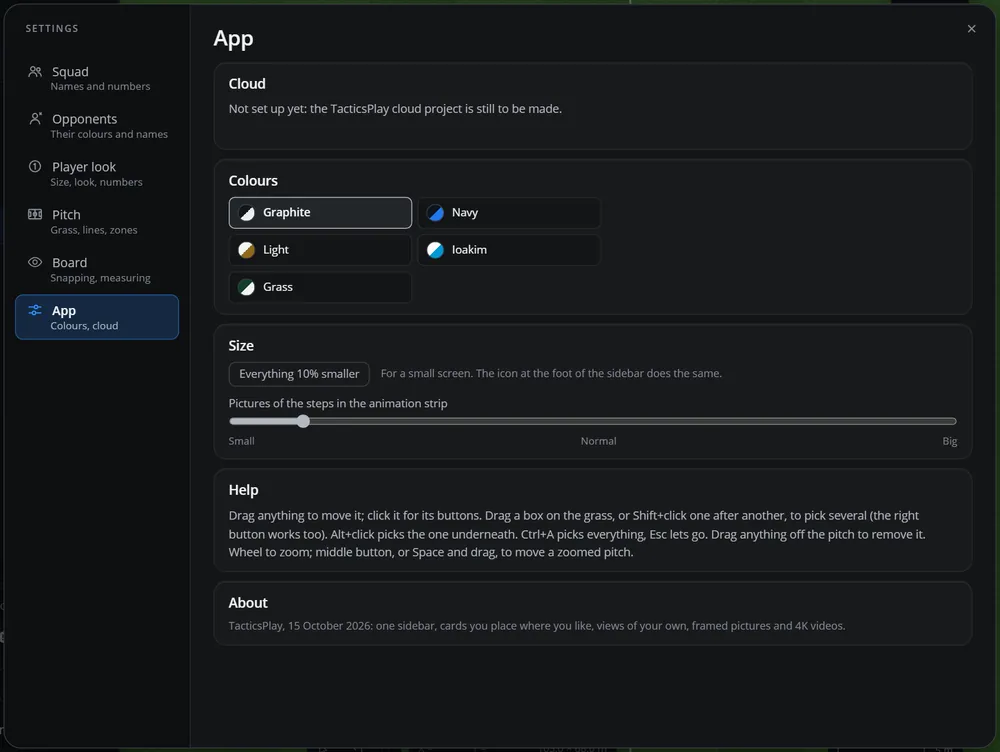
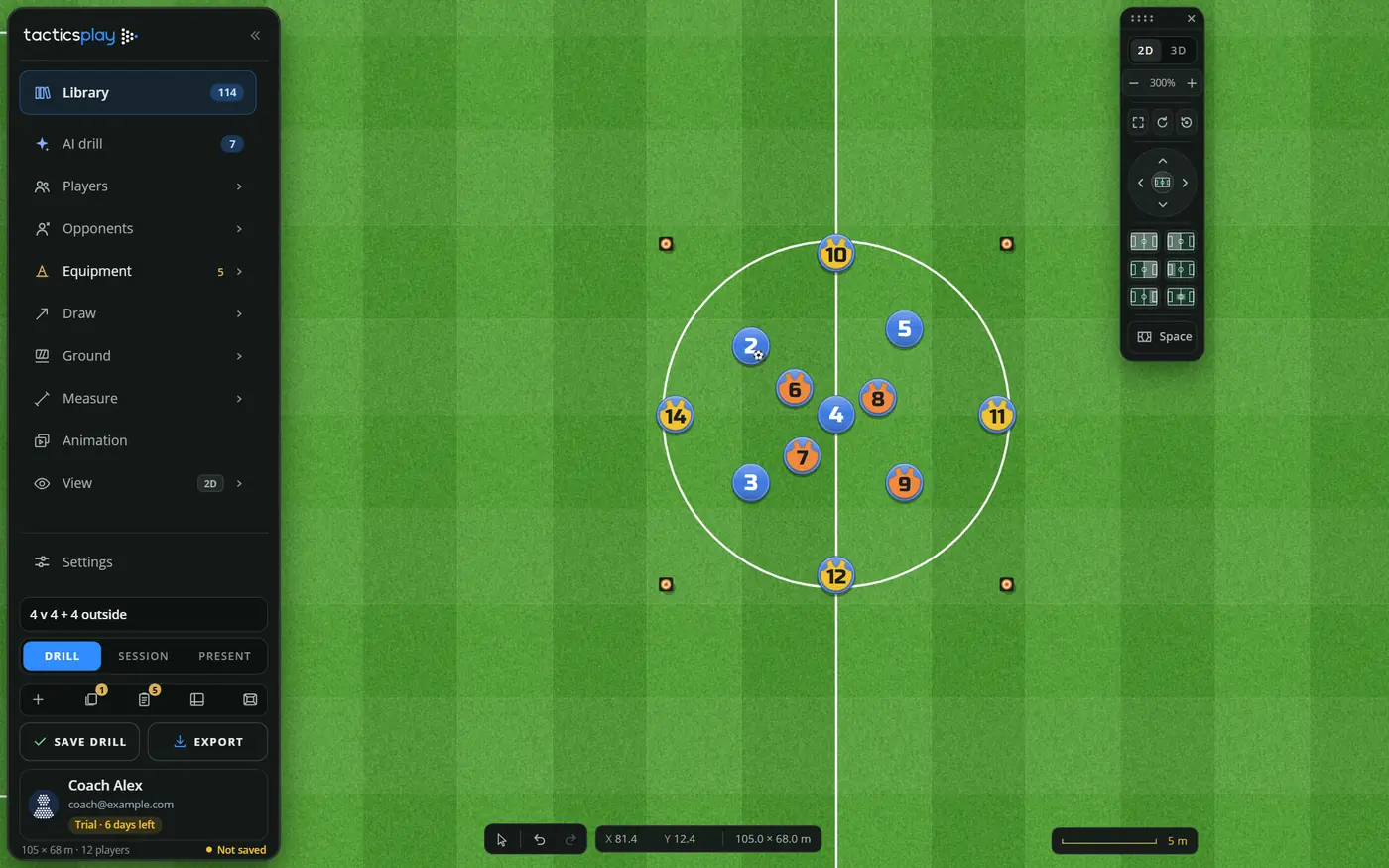
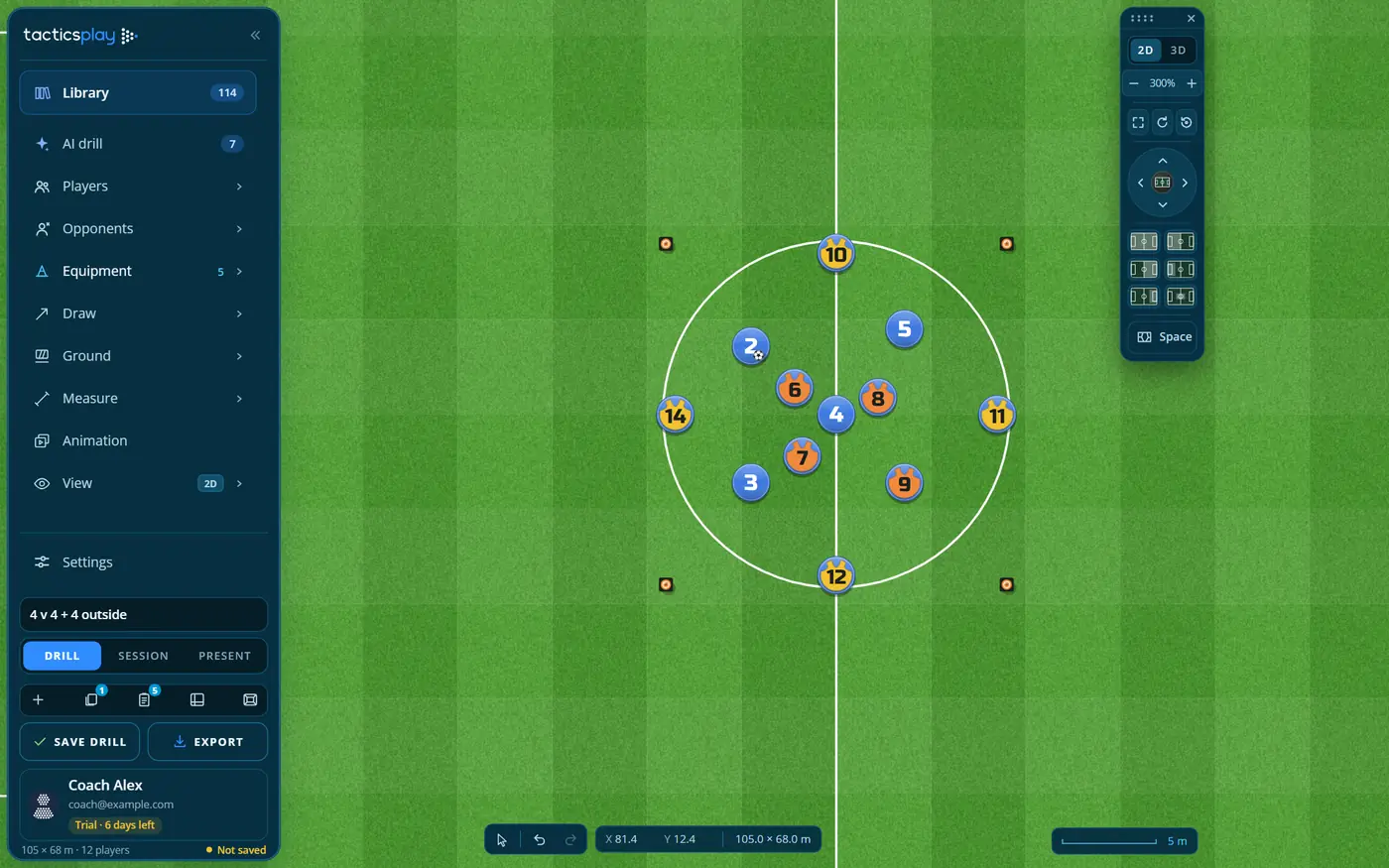
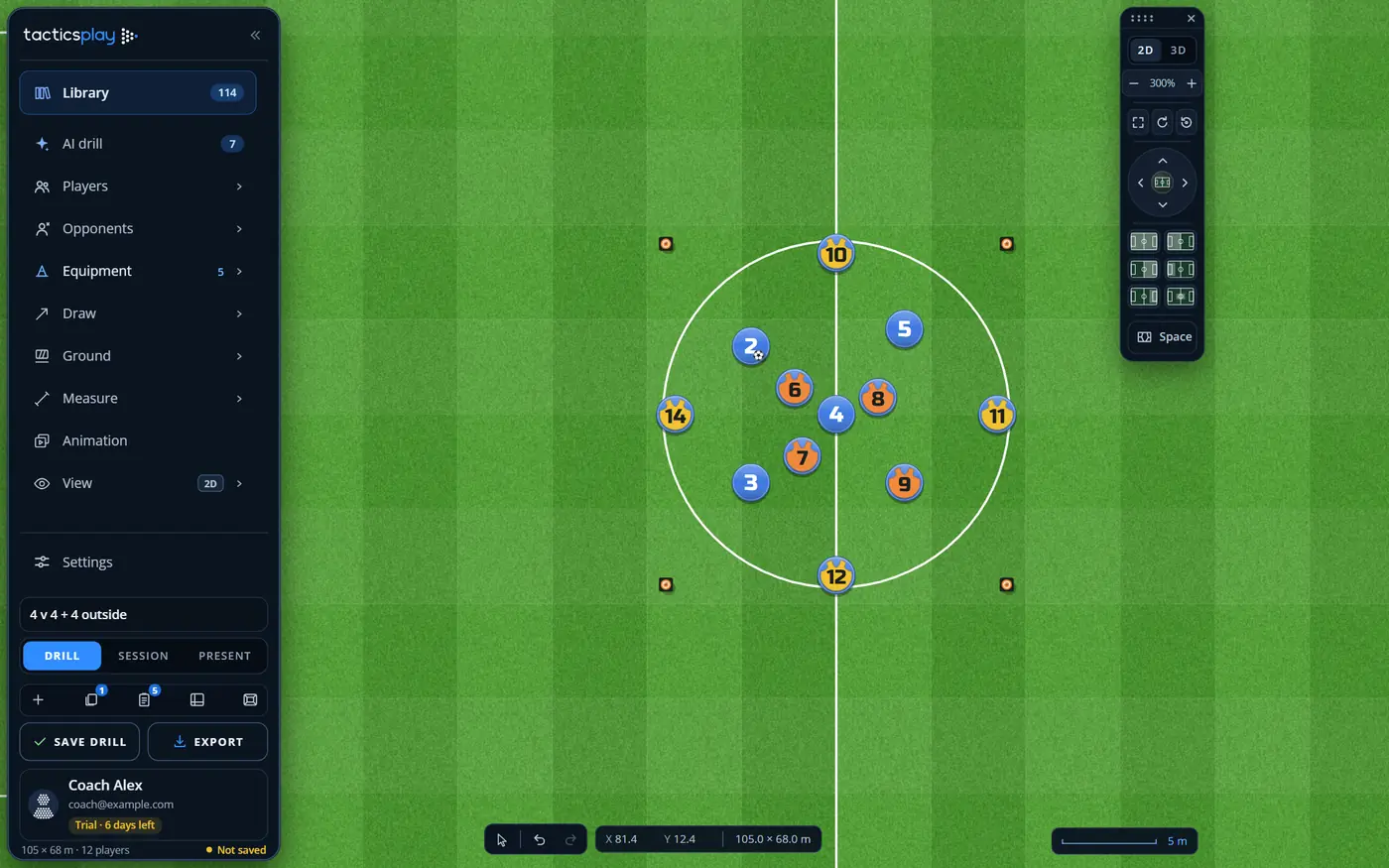
In Settings > App > Colours pick the look of the panels: Graphite (dark, the default), Navy, Light, Ioakim (the IOAKIM.TRAINING colours) or Grass. The pitch stays green in every set.
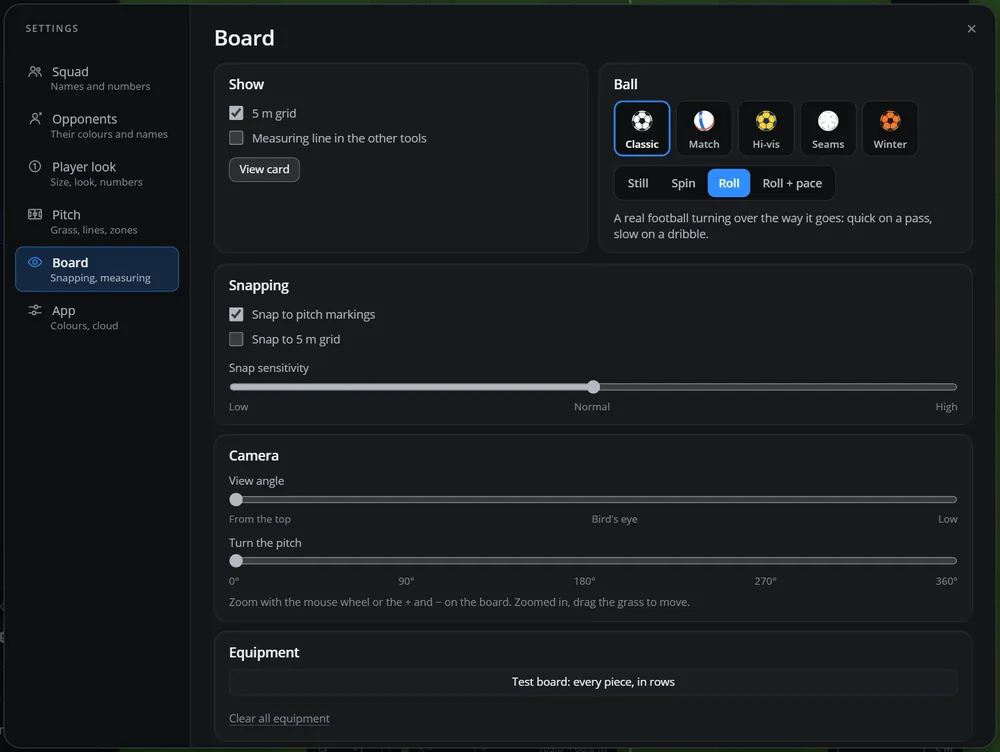
In Settings > Board > Ball choose the ball: Classic, Match, Hi-vis, Seams or Winter. And how it moves: Still, Spin, Roll (the default: it turns over the way it goes, quick on a pass, slow on a dribble) or Roll + pace (a short streak behind a hard pass, and a dribble done in touches).
Players hop over hurdles on their way when the steps play.
Account, plans and tokens
Your account, the Coach plan, the free trial and AI tokens.
When you are signed in, your work is kept in your account and follows you to every device you sign in to: the drills on your clipboard and their pictures, the squad, the opponents, the bibs, your formations and patterns, your favourites, the session and the board as it stands, your name and photo.
Settings of a screen (card places, sizes, colours of the panels) stay on each device.
The newest copy of each thing wins. The first time a device joins, anything it had that the cloud also had is kept aside on the device, never lost.
When you change something on another device you see New from your other device · Reload.
Signed out, your work stays on this computer only.
Lost the connection while the app is open? Keep working. Your changes wait on this device (the app says No internet: your work waits on this device) and go to your account when the internet is back. The AI needs the internet, and so does signing in.
TacticsPlay makes videos with the video maker built into your browser. Use a recent Chrome, Edge or Safari and open the app at its normal https address. If the browser keeps its video maker back (an old browser, or an address that is not secure), the Export window says Slow way only: the film is then recorded in real time, may be uneven, and 4K is not worth making.
Allow the microphone when the browser asks (or in the site settings of your browser), and use the app at its https address. If your browser cannot turn speech into words, type the drill instead.
Check that you are signed in with the same account on both devices (your name at the foot of the sidebar).
Saw New from your other device · Reload? Press Reload.
A private or incognito window forgets everything when it closes, and some browsers block storage there.
Remember to press Save drill: the board is kept as it is, but only saved drills go on the clipboard and into sessions.
This browser would not keep the photo: the browser storage is full; use a smaller photo.
#The pitch is too small or the cards are in the way
Pick another view (Drawing or Clean), fold the sidebar to icons, send cards back into the sidebar with their ×, or press Everything 10% smaller. Press Show the whole pitch in the View card if you are lost.